Viewing form submissions
Once you have created a form and made the link available to your prospects and customers, you will begin receiving submissions. To view the submissions for a form, follow the steps below
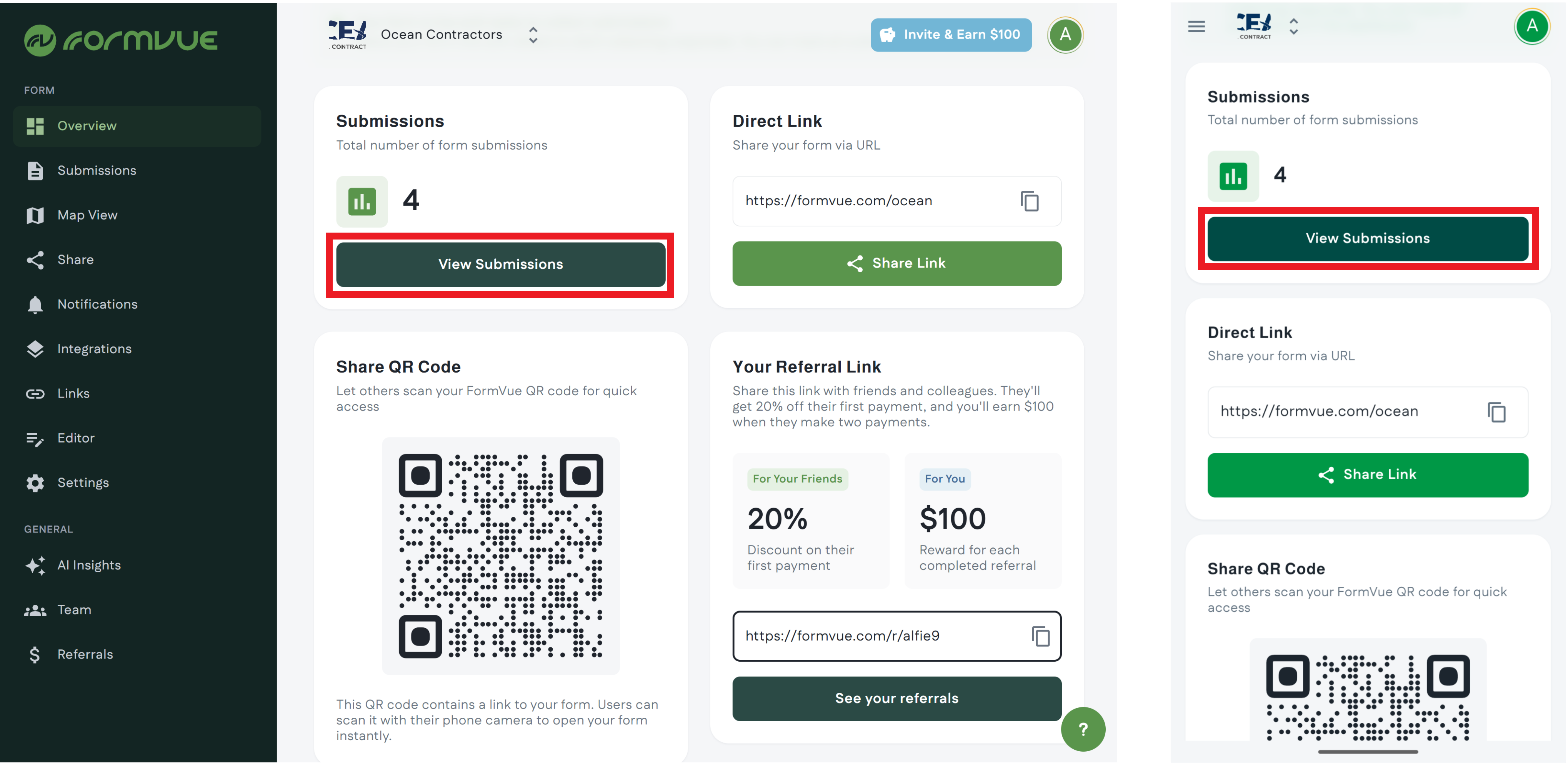
Step 1. Navigate to the Submissions page
Log into FormVue and select View Submissions from the Overview page.
Note: You can select Submissions from the left-hand menu.
Note: If you have multiple forms, select the form from the form drop-down at the top of the page first.
Step 2: View submissions
The experience for viewing submissions is optimized for desktop or mobile experiences.
Mobile
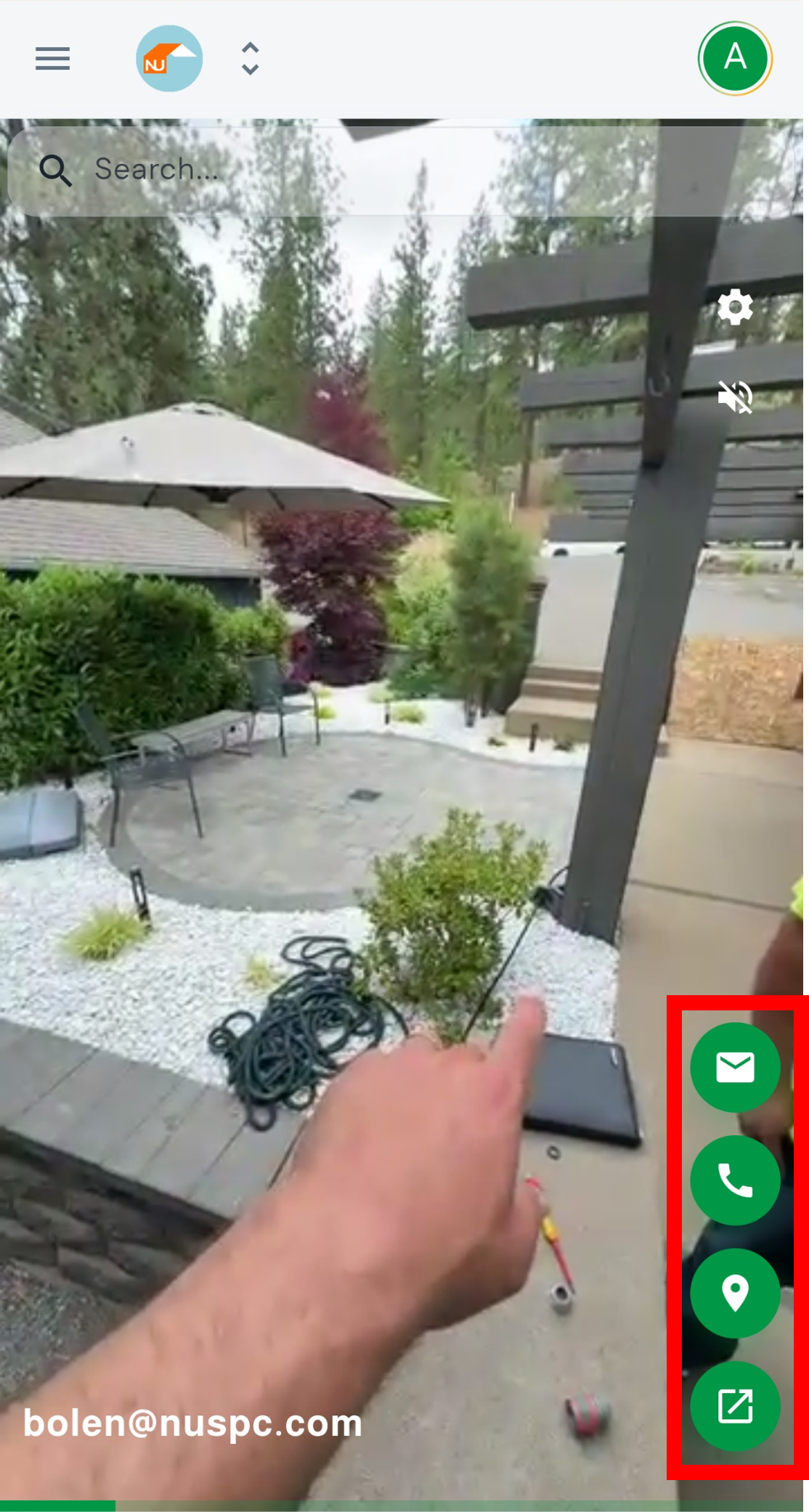
- On a mobile device, submissions are shown as a full screen video in the order they were received.
- A search bar is located at the top of the screen to search for specific submissions
- Scroll up to view the next submission or down to see the previous submission.
- Shortcuts are shown in the bottom right corner of the video.
 | Email contact (if email address is collected) |
 | Call contact (if phone number is collected) |
 | View location of submission on map |
 | Opens submission to view all form information |
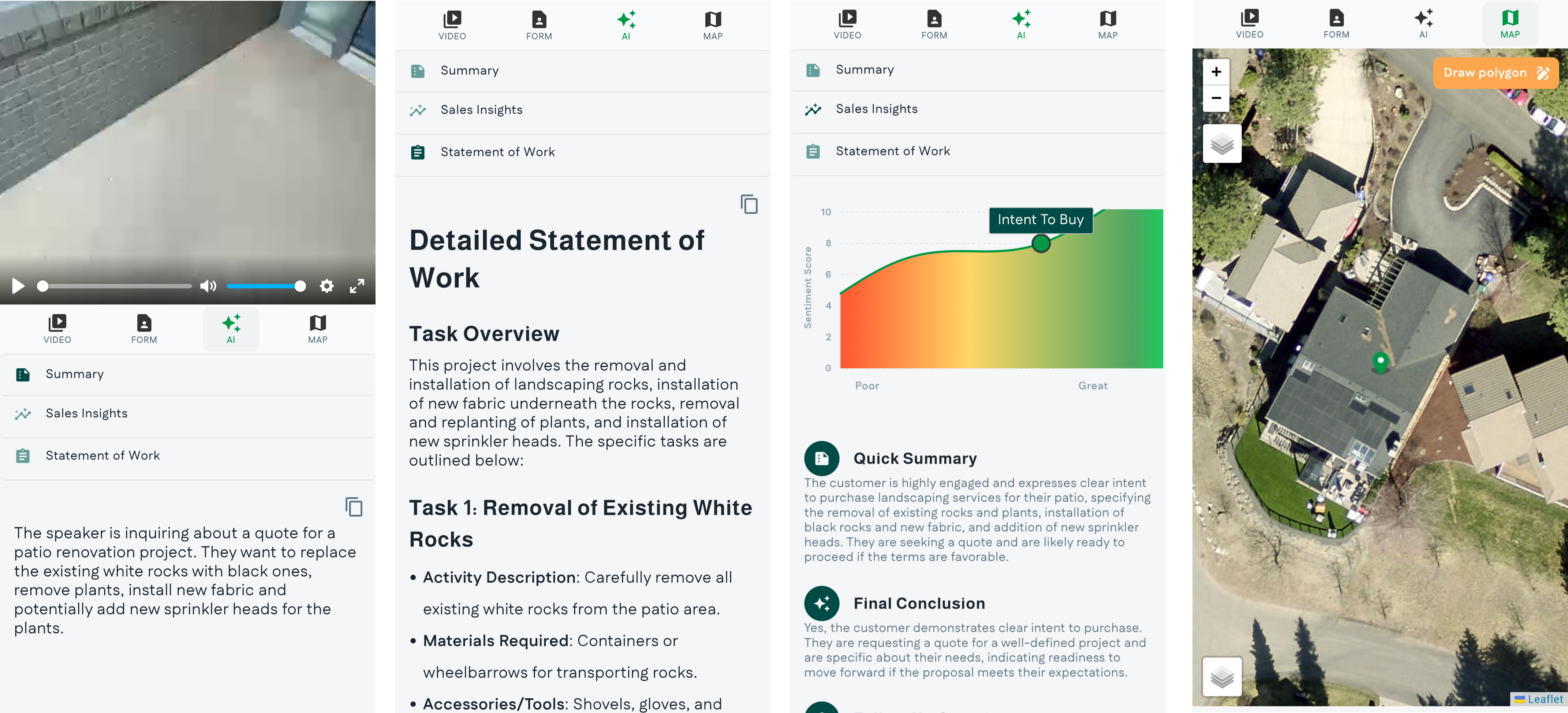
When you open the submission you will have access to all the information collected in the form as well as FormVue's AI-powered sales insights.
Desktop or Laptop
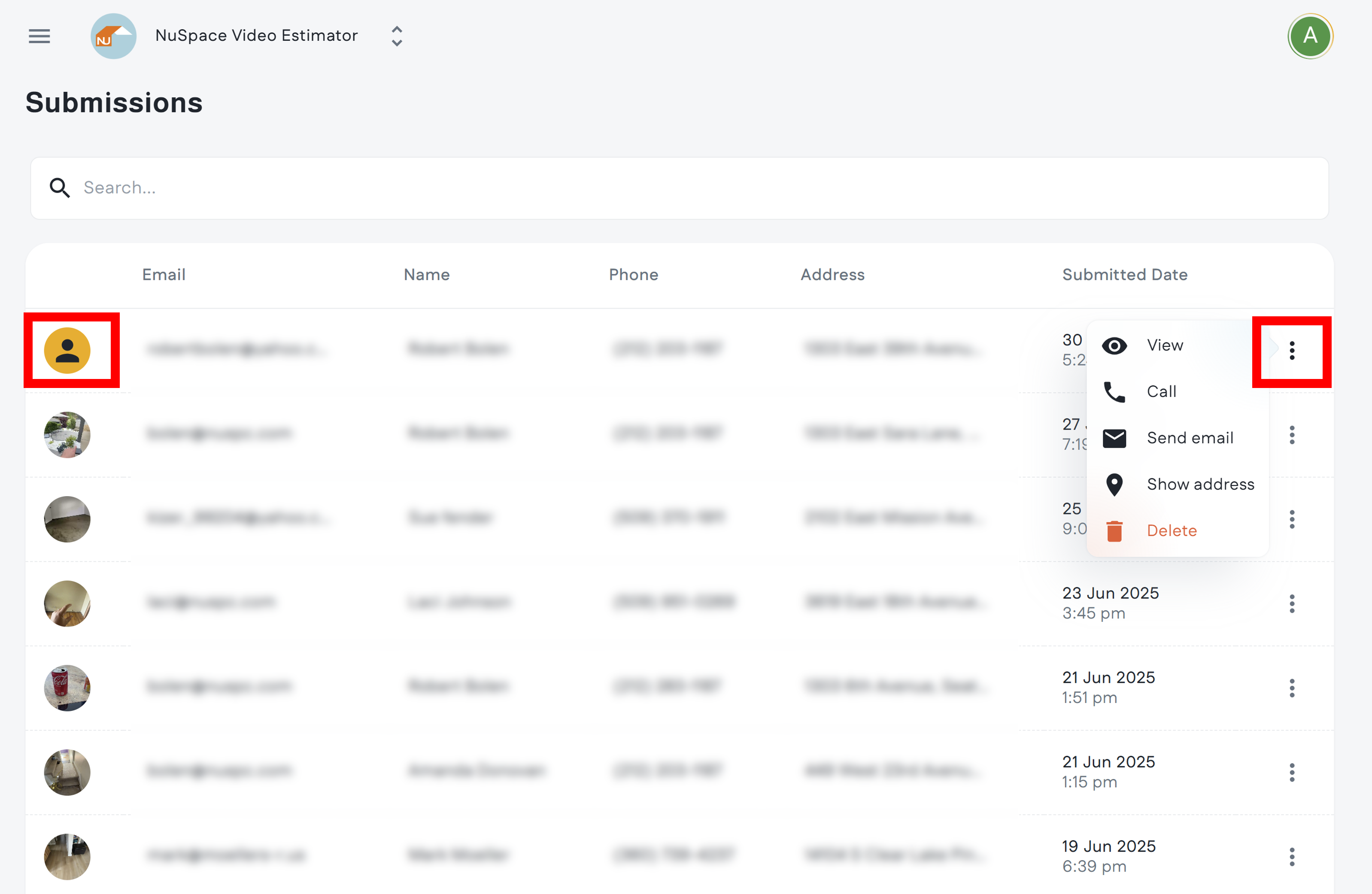
- On a desktop or laptop computer, submissions are listed in a table.
- Select the thumbnail in the first column, or the more menu (three dots) in the last column to view the submission.
- From the more menu there are also shortcuts to email the contact, show the address of the submission on a map, or delete the submission.
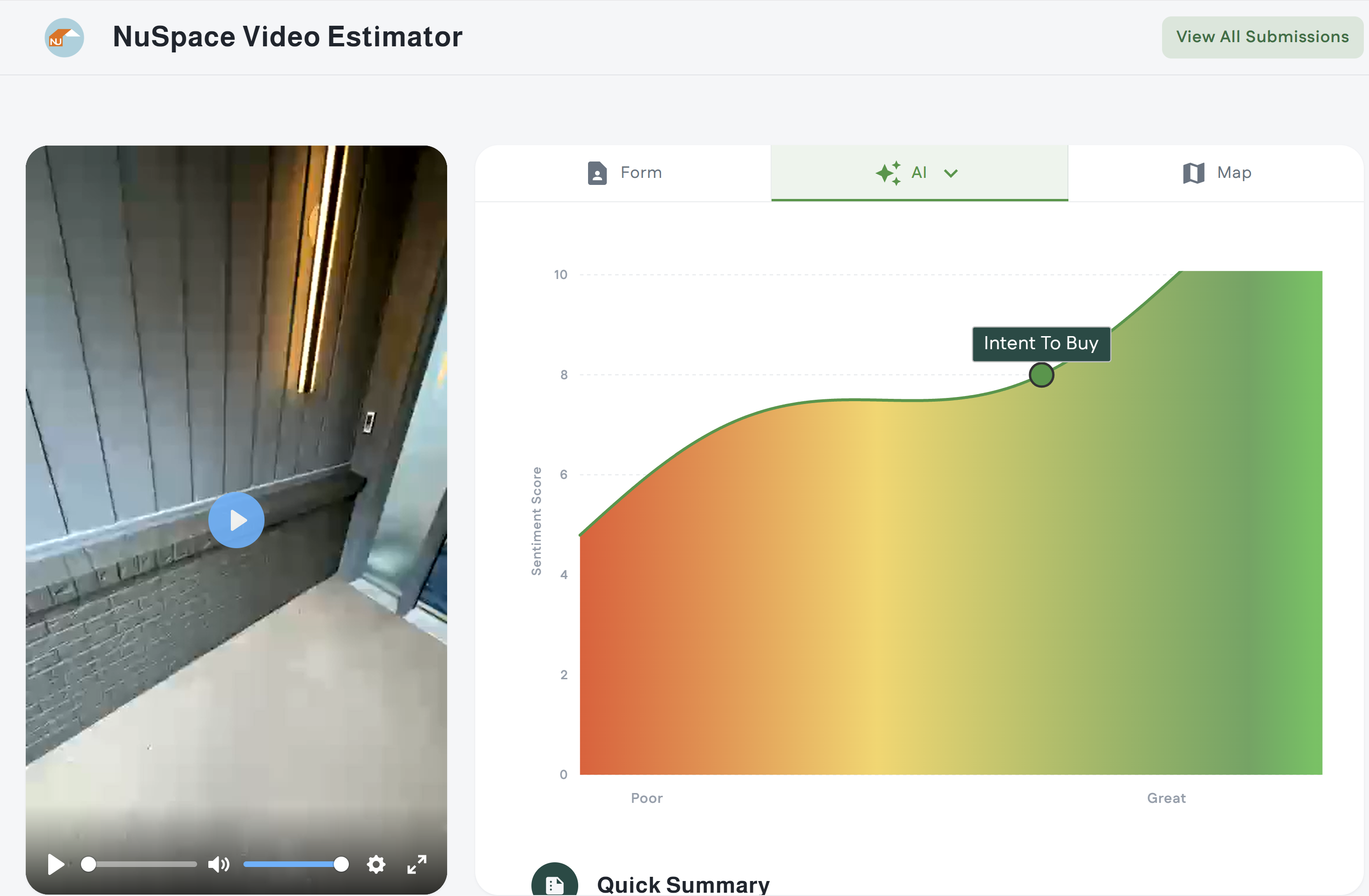
When selecting View the submission is opened, allowing you to view the form information as well as FormVue's AI-powered insights
Use the tabs at the top to view Form information, AI insights, and the map view.