Using the FormVue Mobile App
Downloading the FormVue mobile app
You can download the FormVue mobile app from the App Store or Google Play store using the below link:
https://formvue.com/download-app
Signing into the FormVue mobile app
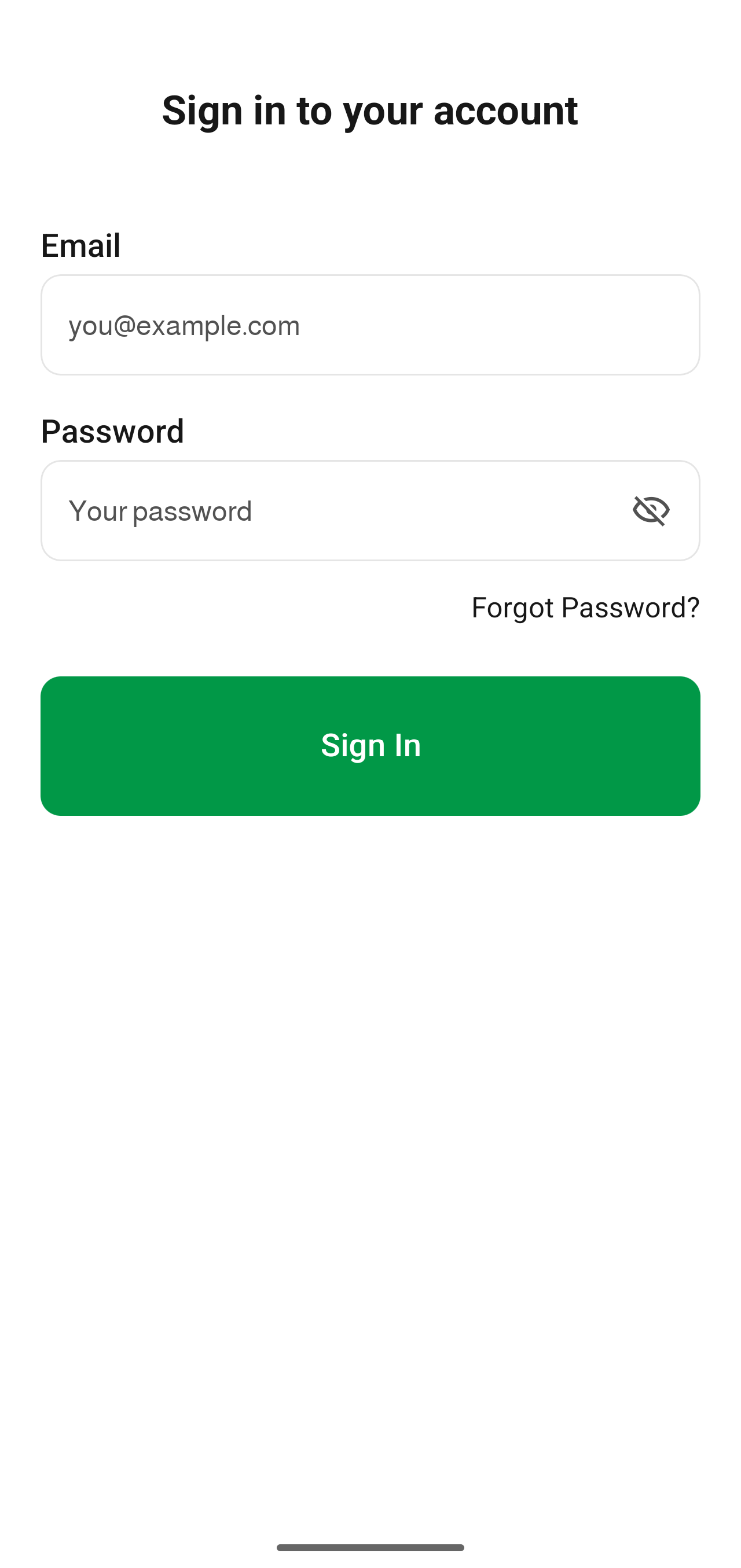
Enter your email address and password to login. The FormVue mobile app uses the same username and password as the web app.
If you've forgotten your password, use the Forgot Password? link to reset it.
 Sharing your link
The FormVue mobile app provides several easy ways to share your link.
Sharing your link with a personalized text message
Using a personalized text message is the best way to share your link.
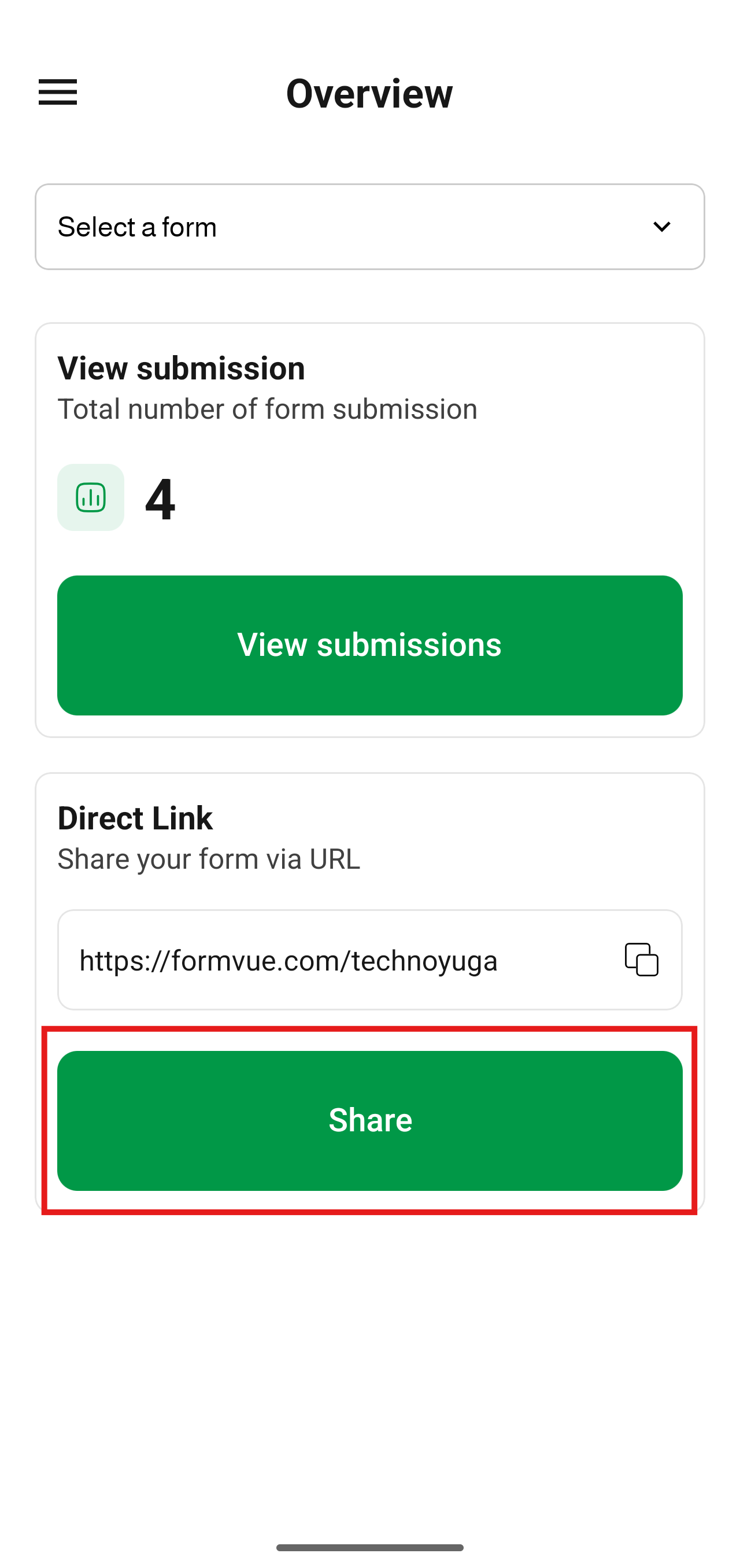
- From the Overview screen of the mobile app, click the Share button
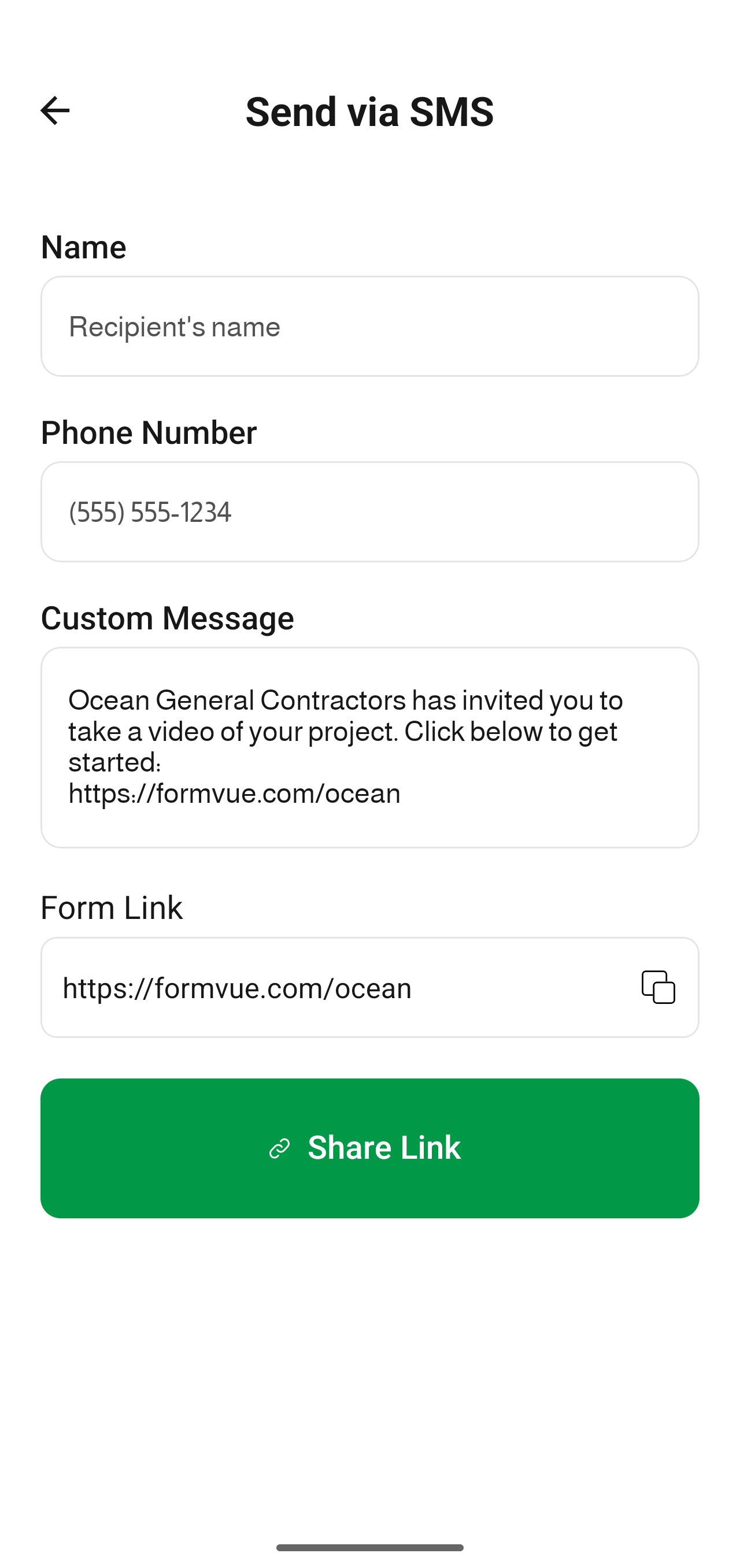
- From the Send via SMS screen that appears, enter your customer's namd and phone number
FormVue Tip: If you don't enter a phone number, clicking Share Link at the bottom will open your phones sharing options. It is recommended to enter a phone number so the link can be tracked. - Optional: customize the message in the Custom Message area
- Click Share Link
FormVue will send the customer your message and link on your behalf, so you will not see it in your outgoing text messages.
If you entered the users phone number, you can now track the link on the Links page in the web app.
Sharing your link with a QR Code
You can access your form link QR code from the menu at the top left
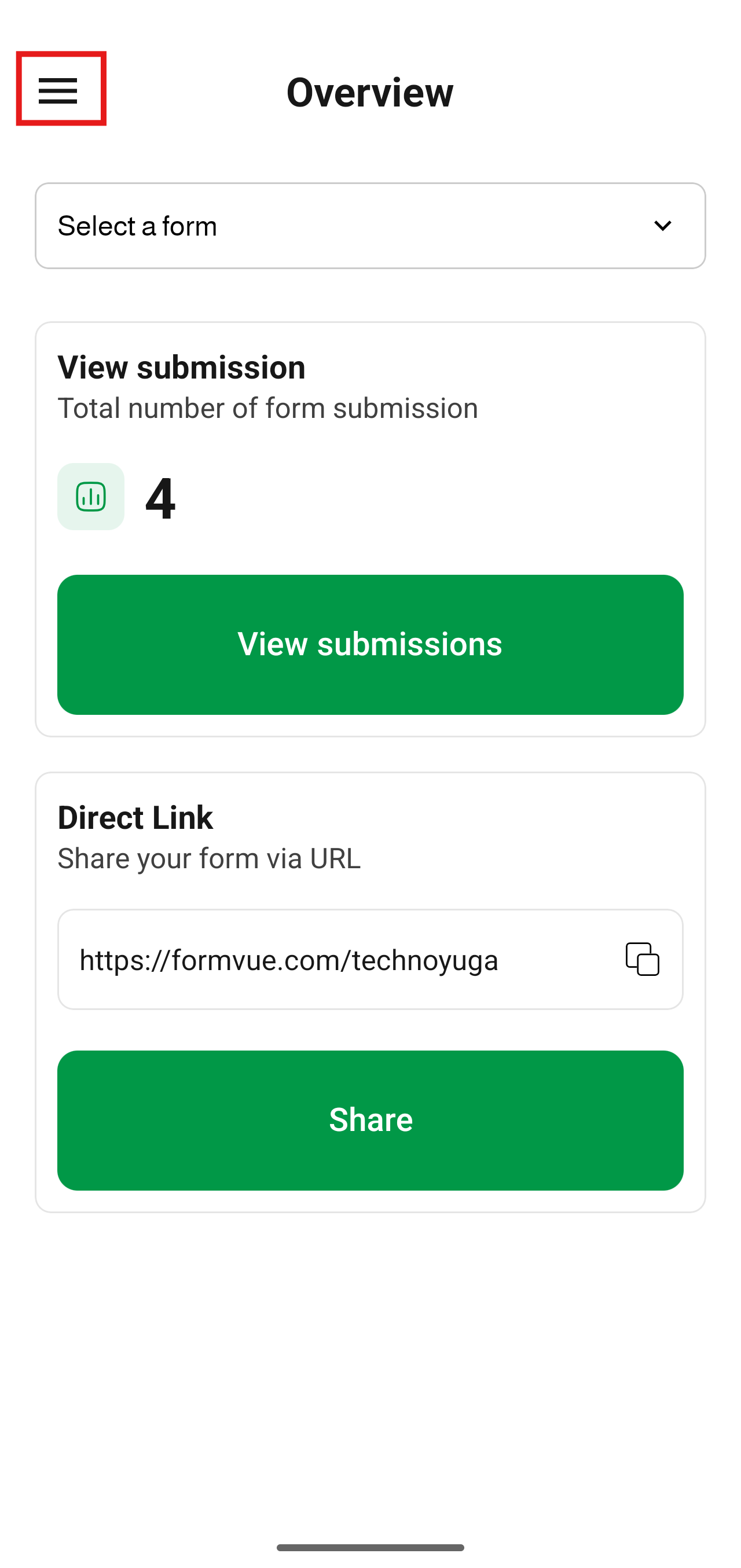
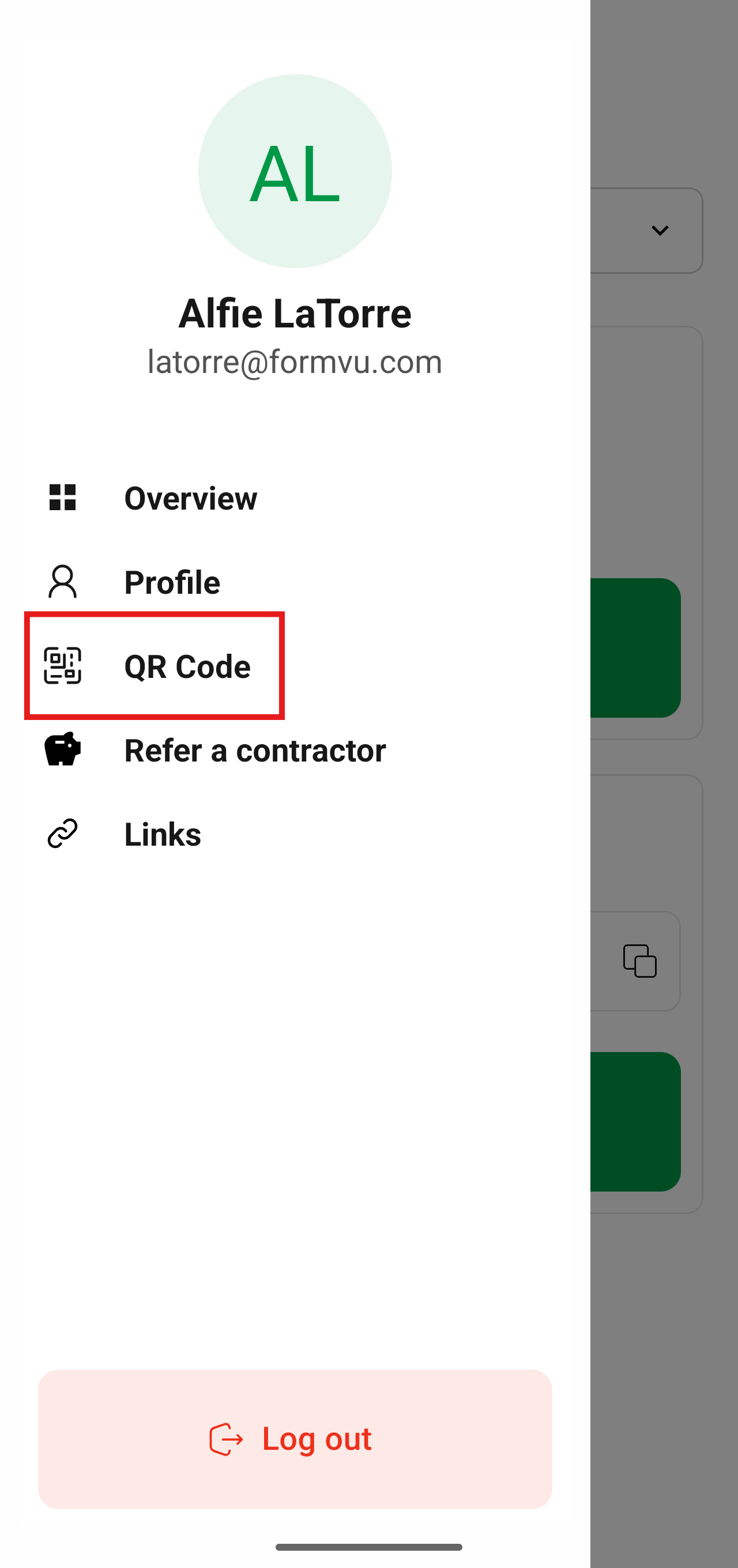
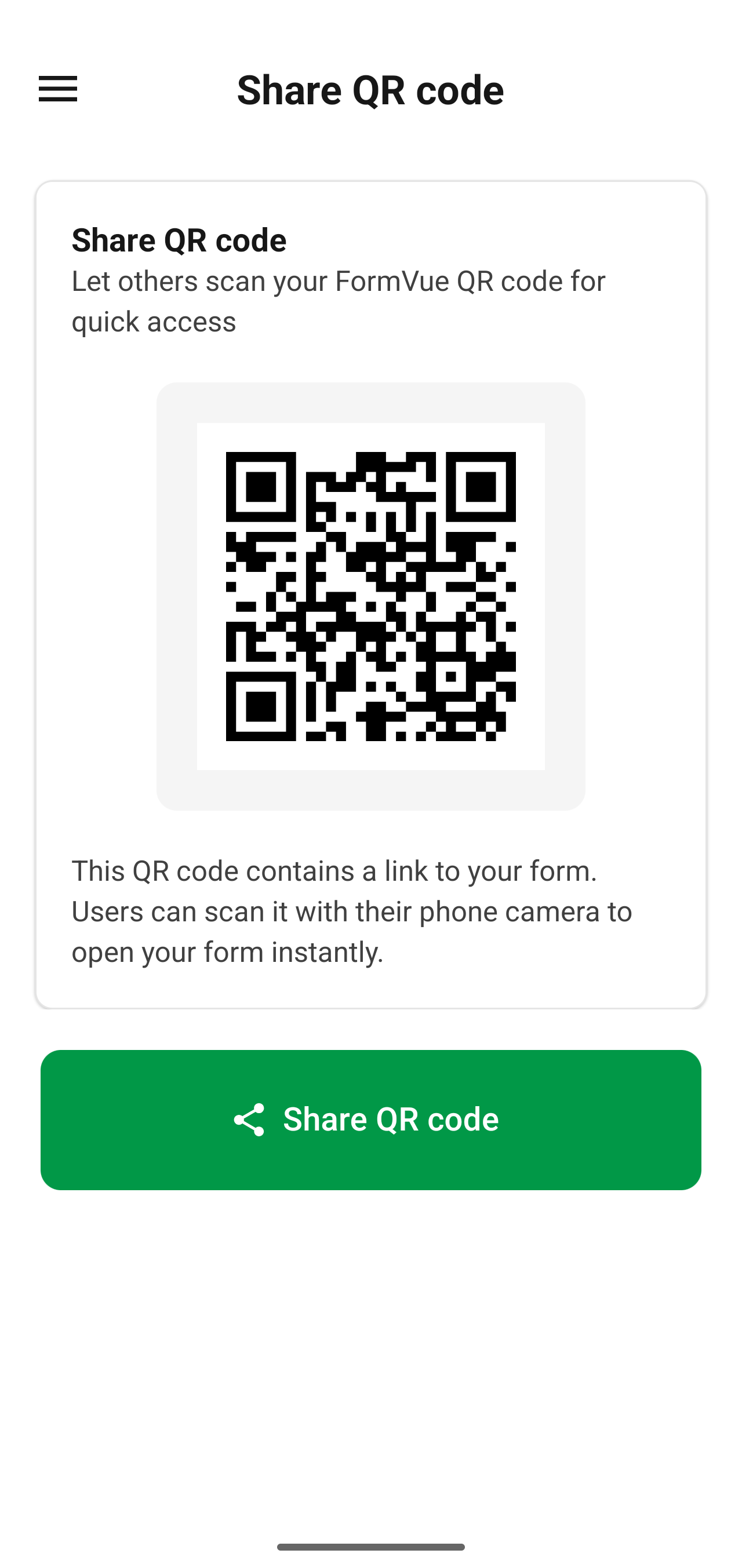
The QR code is an easy way to share your link when your out in the field. A customer or prospect can use their camera to access your link from the QR code right on your phone.
You can also use the Share QR code button to share you QR code image via text or email.
Accessing your submissions
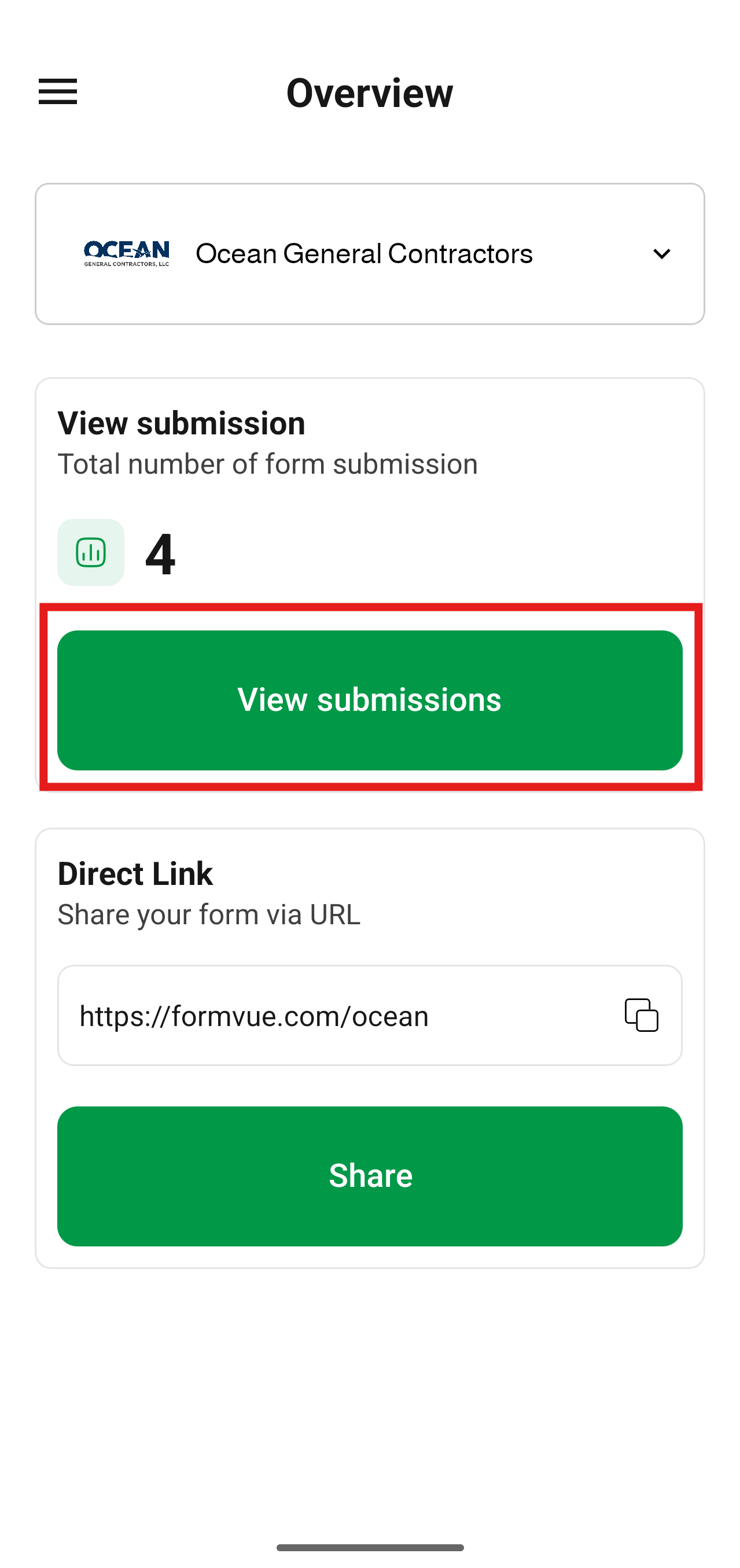
- From the Overview page of the mobile app, click View submissions to view your submissions.
- You're submissions will appear sorted by the most recent at the top.
- Use the search field to search for specific submissions
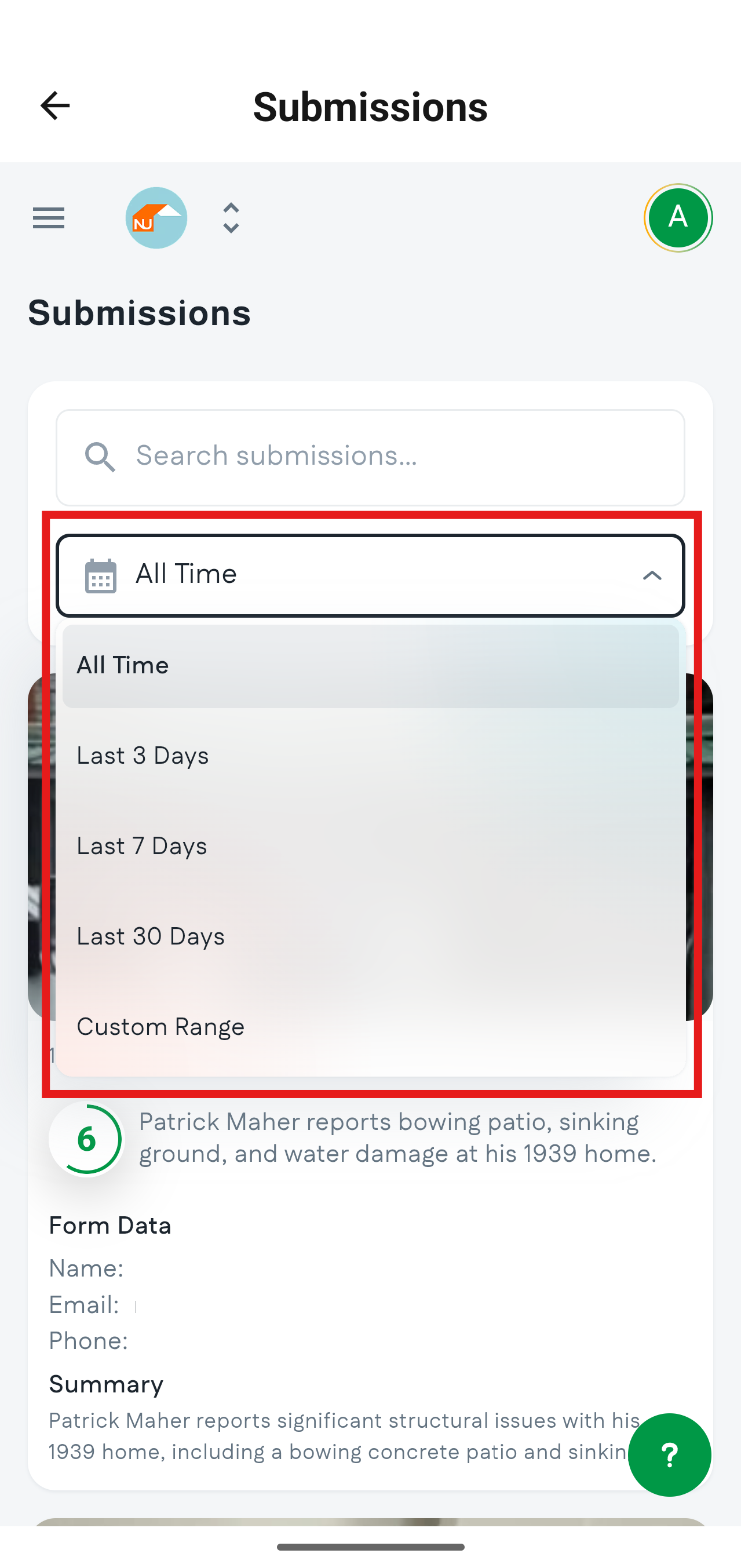
- Filter your submissions based on time using the filter dropdown
- Scroll down to browse your submissions
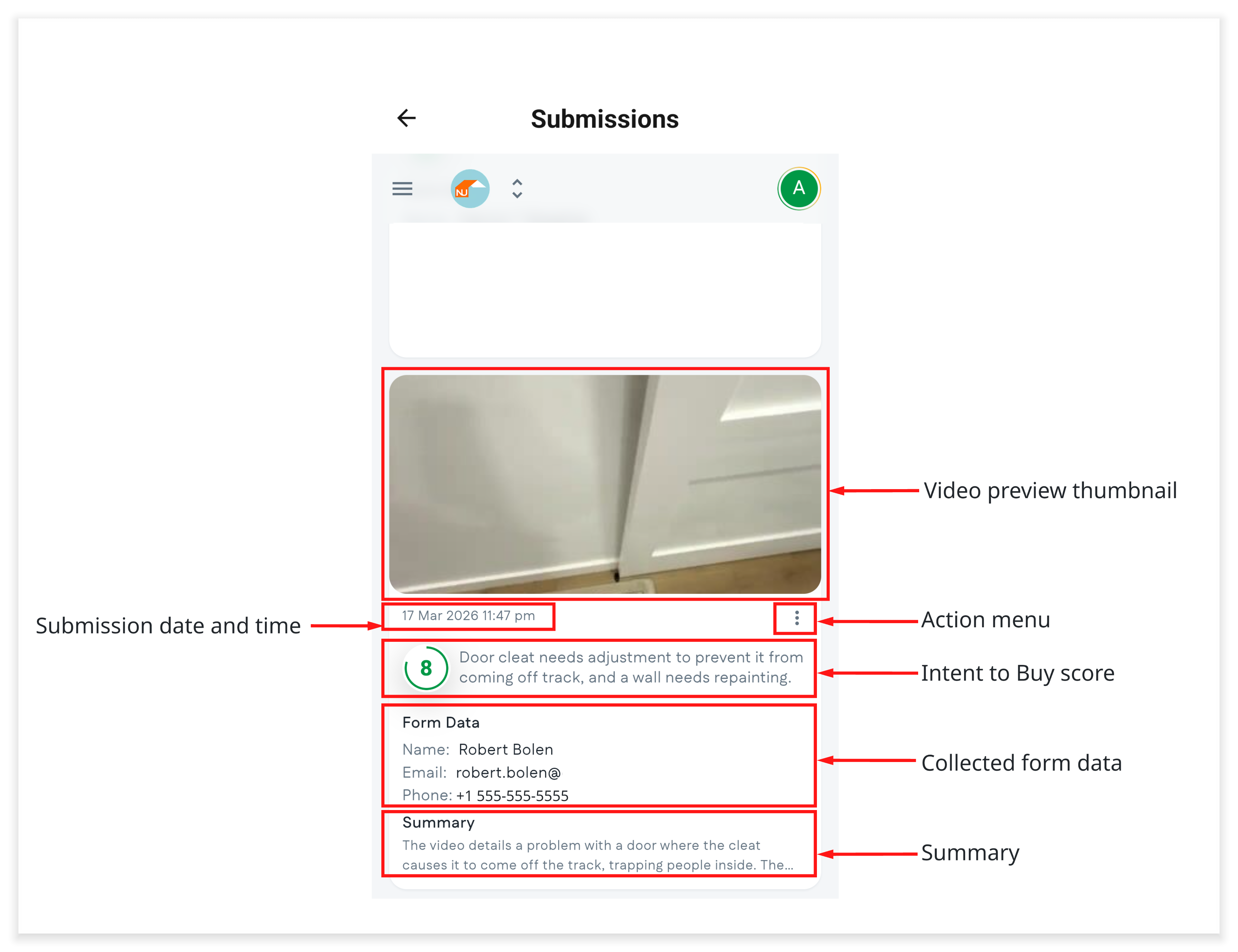
- The following information is shown while browsing submissions:
- A thumbmnail of the customer's video
- The date and time of the submissions
- The action button
- The Intent to Buy score
- Form data that was collected
- A summary of the video content
- Use the action menu button for quick access to contacting the customer or managing the submission
- Select a submission by clicking/tapping it
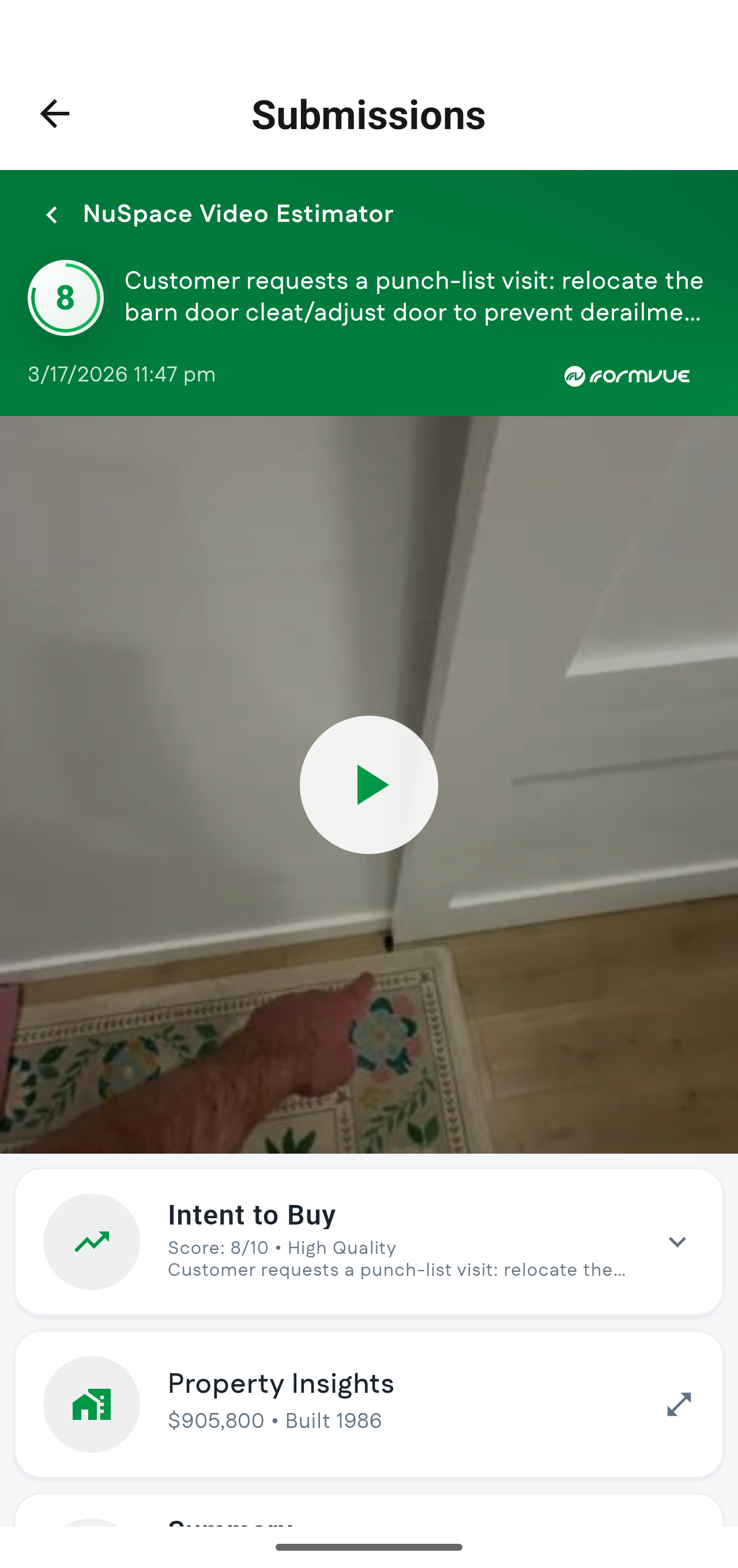
- The submission screen appears.
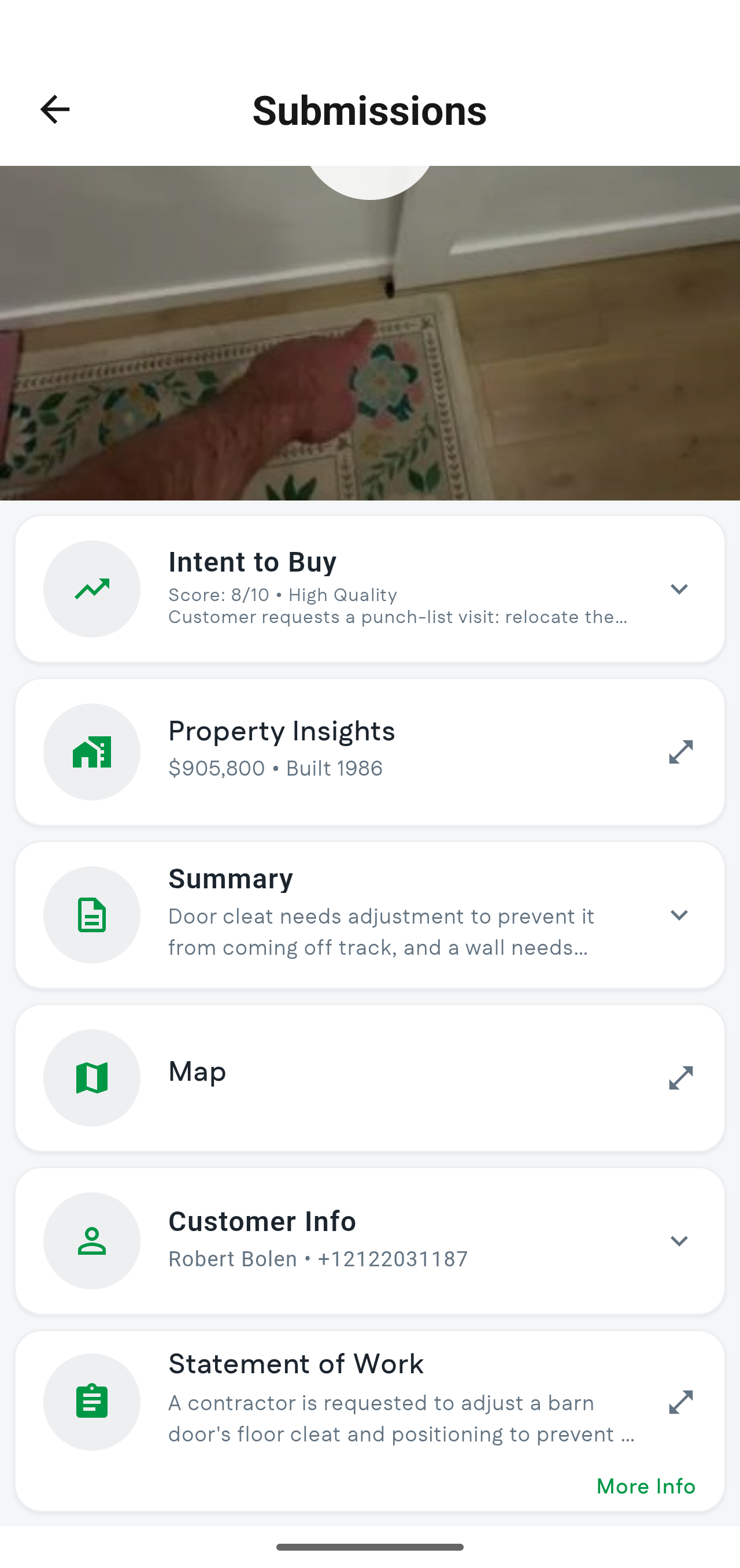
- When viewing a submission, the video and several informational "cards" are displayed.
- Your form may have more or less information available depending on how you've configured it.
- The icon on the right side of the card shows how the card will be opened: a new window or expanding the card to display the information.
- Below are the cards available for a form with a default configuration.
- Intent to Buy Score: The Intent to Buy score and a preview of the description is displayed at the top of the page. Select the Intent to Buy card below the video to see the full details of the score.
- Video: The video is displayed at the top of the submission screen. Tap the play button to play the video.
- Intent to Buy: Displays an score (1-10) and brief description conveying how motivated the prospect is using AI to combine several factors, such as urgency, budget, and authority.
- Property Insights: Shows information about the property, such as the estimated hoome value and current owner.
- Summary: Shows a brief summary of everything the customer showed and asked for in their video submission.
- Map: Provides a satellite map and several measuring tools for property visibility and estimating.
- Customer Info: Provides information about the customer captured from the form, such as name, email, and phone number.
- Statment of Work: Provides an AI-generated SoW based on everything captured in the video. This SoW can fine tuned for different industries and services for better context. The SoW also provides a copy button to easily copy the text into your standard SoW template.
- For cards that open in a new window, such as the Map you can close the card and return to the submission view by clicking the "X" in the top-right corner.
Using the Map
The map provides accurate visual and measurement tools and is often enough to build an estimate without having to do a physical site visit.
To access thge Map tool, select the Map information card when viewing a submission
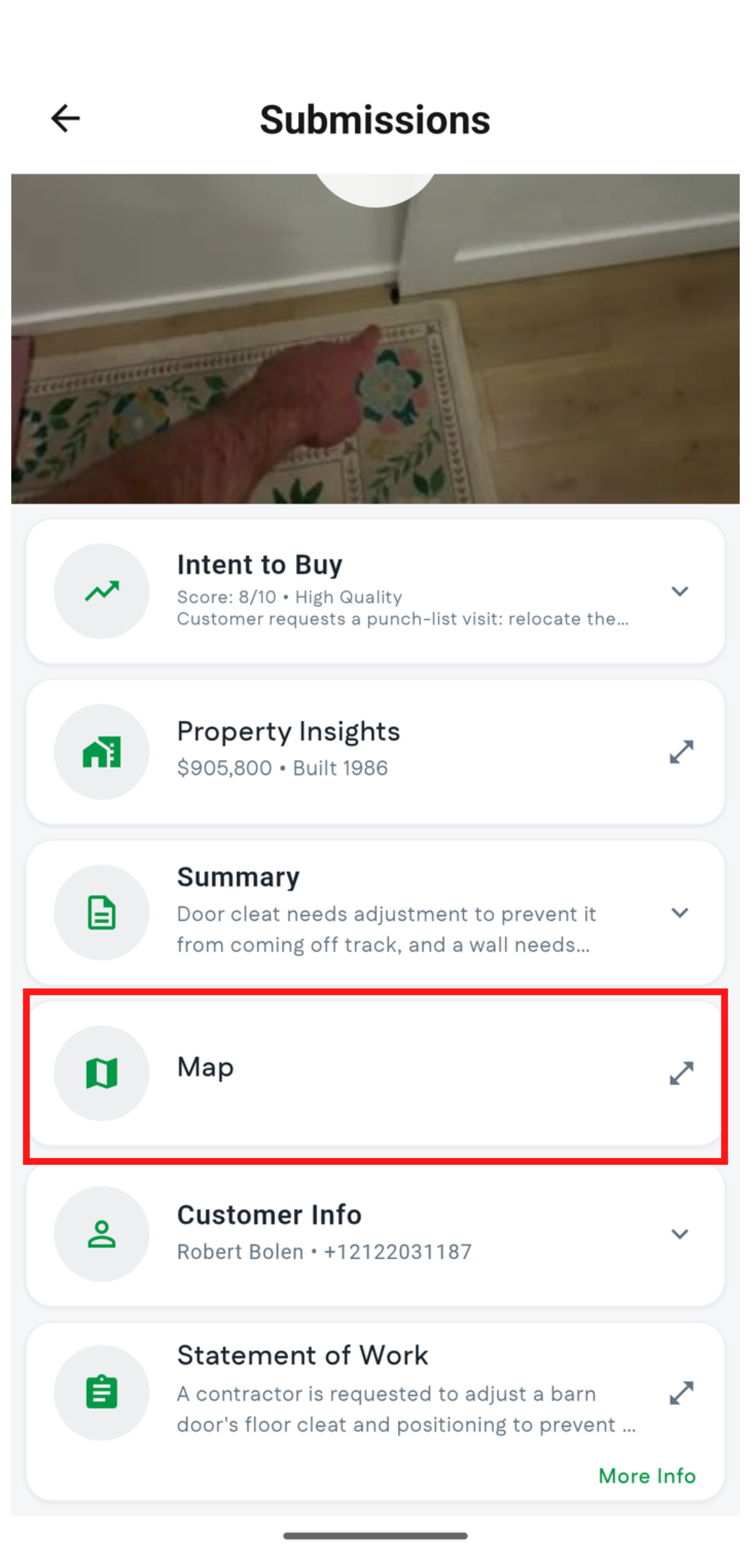
Viewing the Map
Once the map is displayed, it provides several tools:
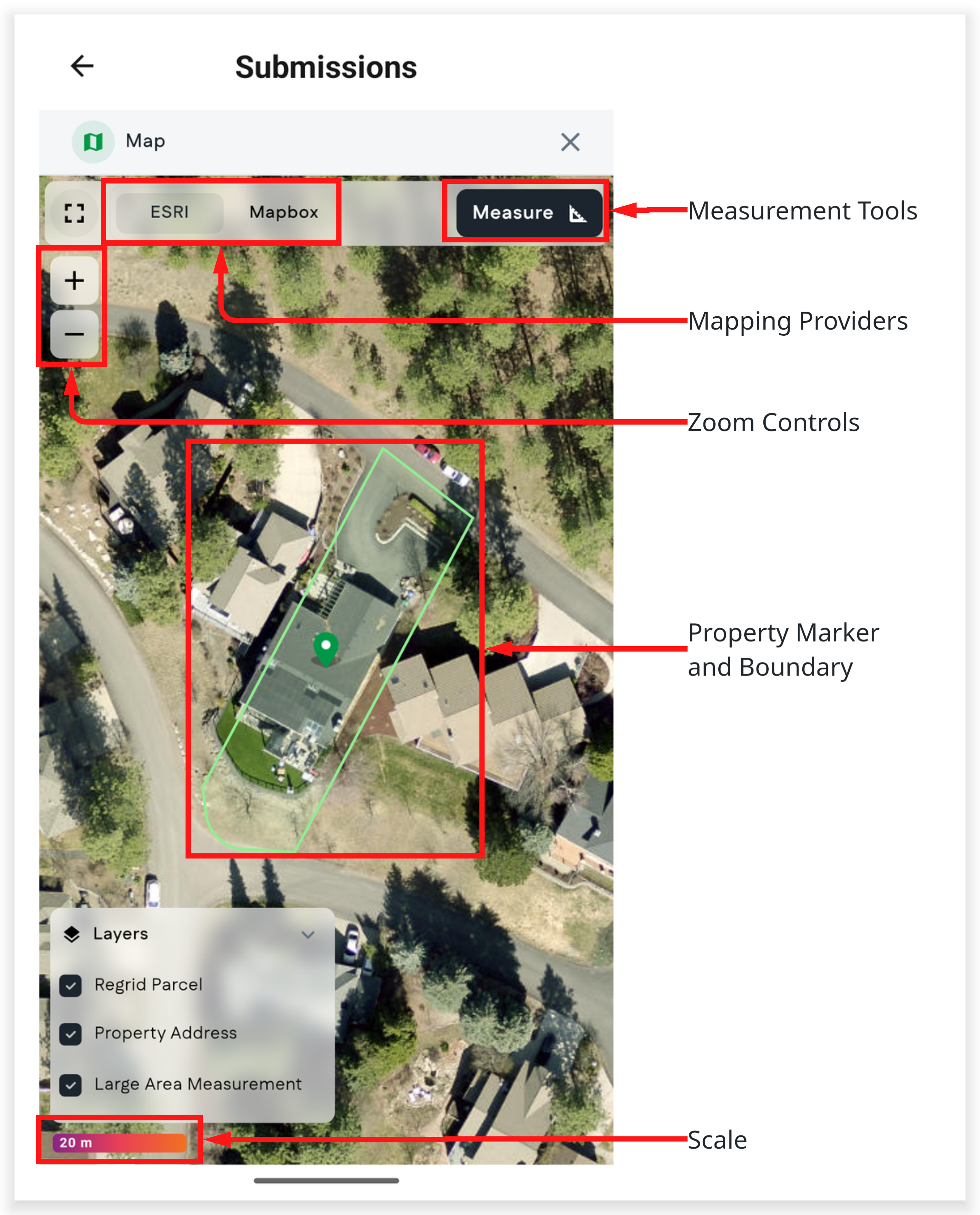
- Measurement Tools: Tools for calculating area and linear feet
- Mapping Providers: FormVue provides two mapping services. You may need to toggle beetween them based on the property location to see which one provides a better visual.
- Zoom Controls: Used to zoom in and out on the property. You can also "pinch-to-zoom"
- Property Marker and Boundaries: Shows a marker and highlighted area for the property associated with the address
- Scale: Provides scaling
Using the Measurement Tools
FormVue provides tools for measuring area and linear feet using the map.
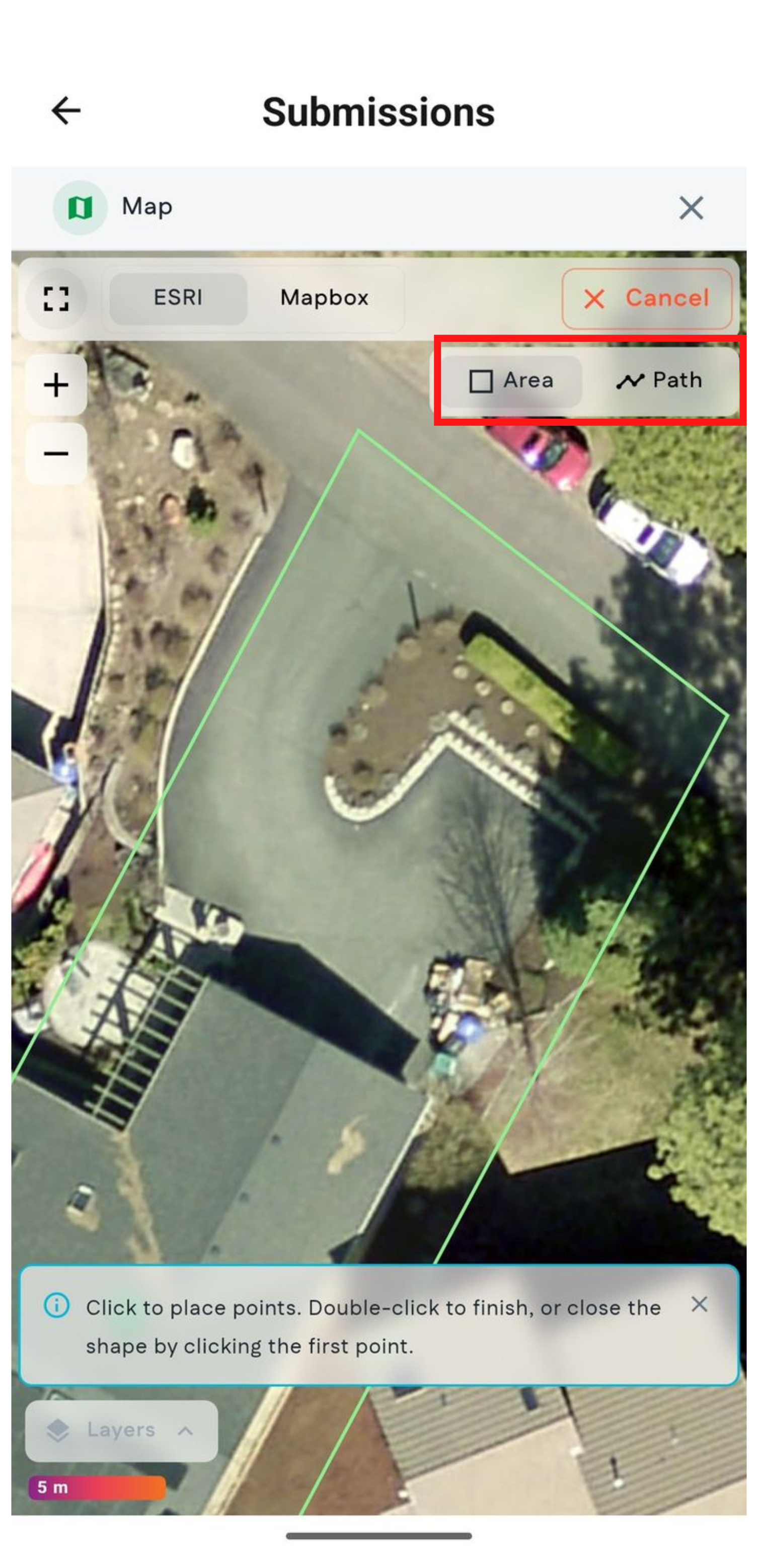
Clicking on the Measurement Tools button will display the two available tools:
- Area: Provides the area of a specific space in square feet and acres. Also provides the length of segments. Great for calculating the size of patios, sidewalks, or driveways.
- Path: Used for measuring linear feet. Great for calculating fence lines, curb, or distance.
Using the Area Tool
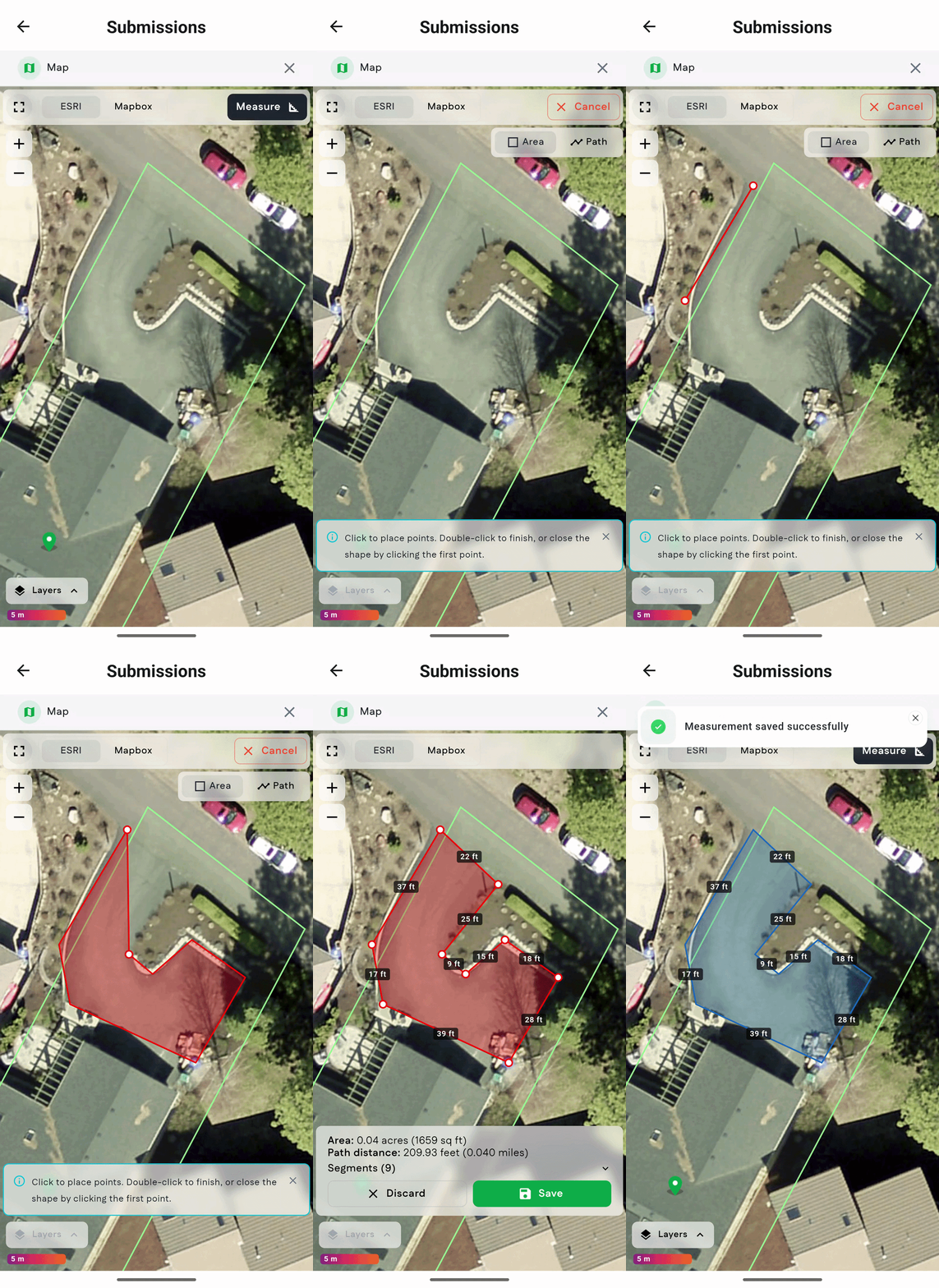
To use the Area measurement tool:
- Select the Measurement tool in the top-right corner of the map
- The Area tool is selected by default
- Use your finger to click the perimeter of the area you would like to measure
- Finish your measurement by completing the area and returning to the first point
- When you complete your measurement, the area is displayed. You can choose to save or discard the measurement
- Once saved, you can create additional measurements on the same map
- Click on a completed measurement to see the calculations
Using the Path Tool
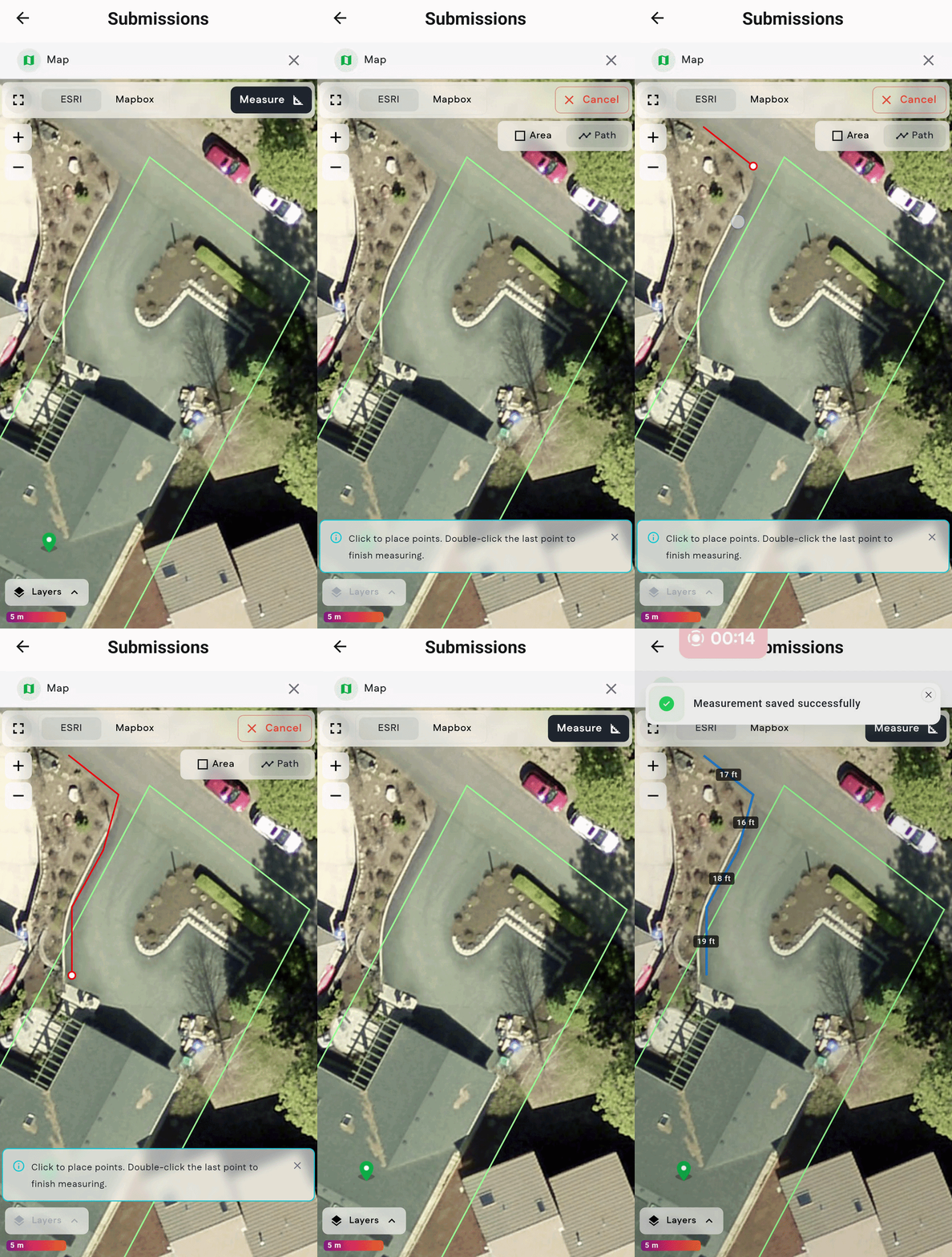
To use the Path measurement tool:
- Select the Measurement tool in the top-right corner of the map
- Select the Path measurement tool
- Use your finger to click the path you want to measure
- Finish your measurement by double-clicking on the last point