Form Editor - Adding a Step
Adding a Step
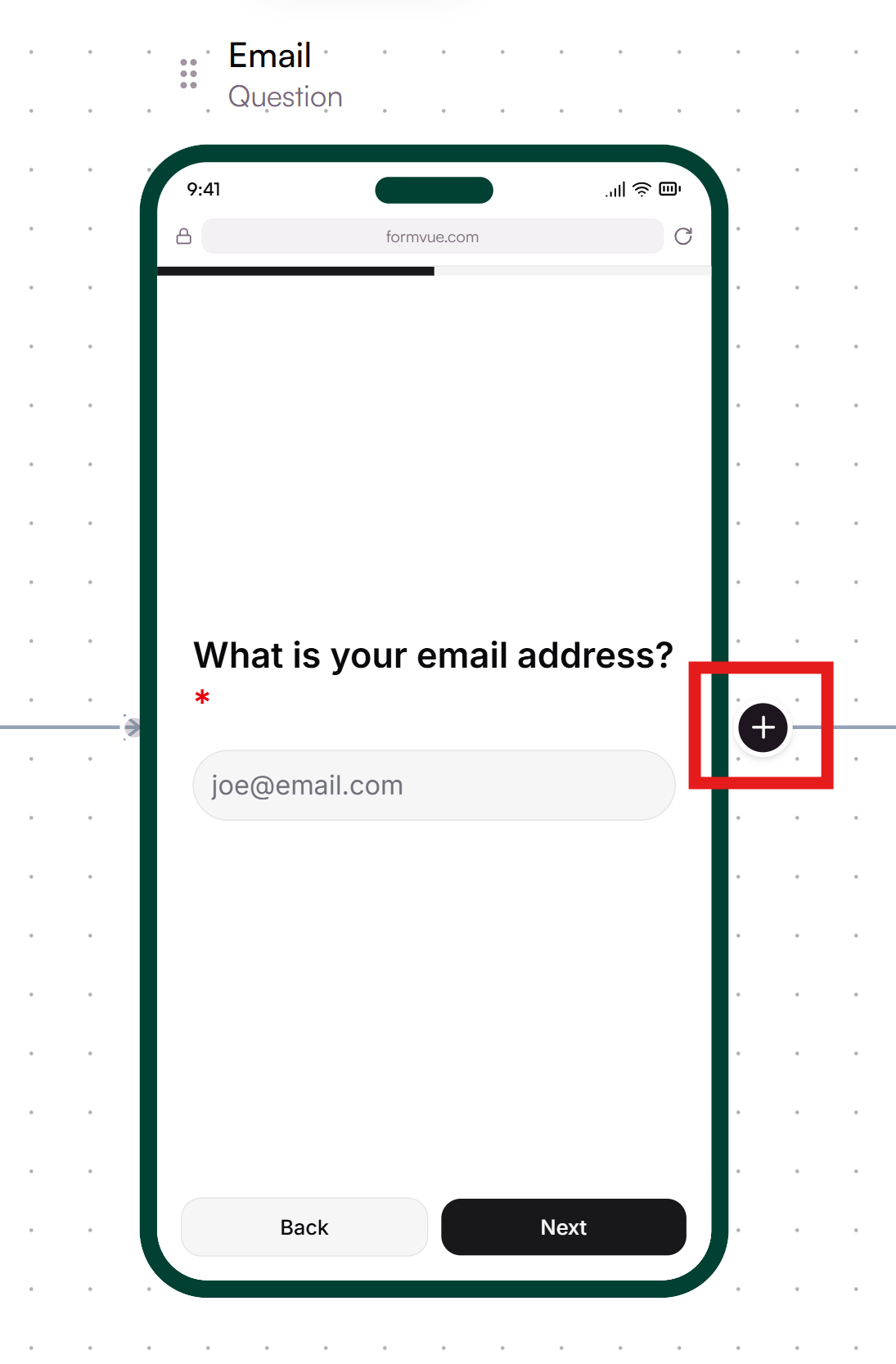
- Select the "+" button to the rightb of an existing step where you want to add the new step.
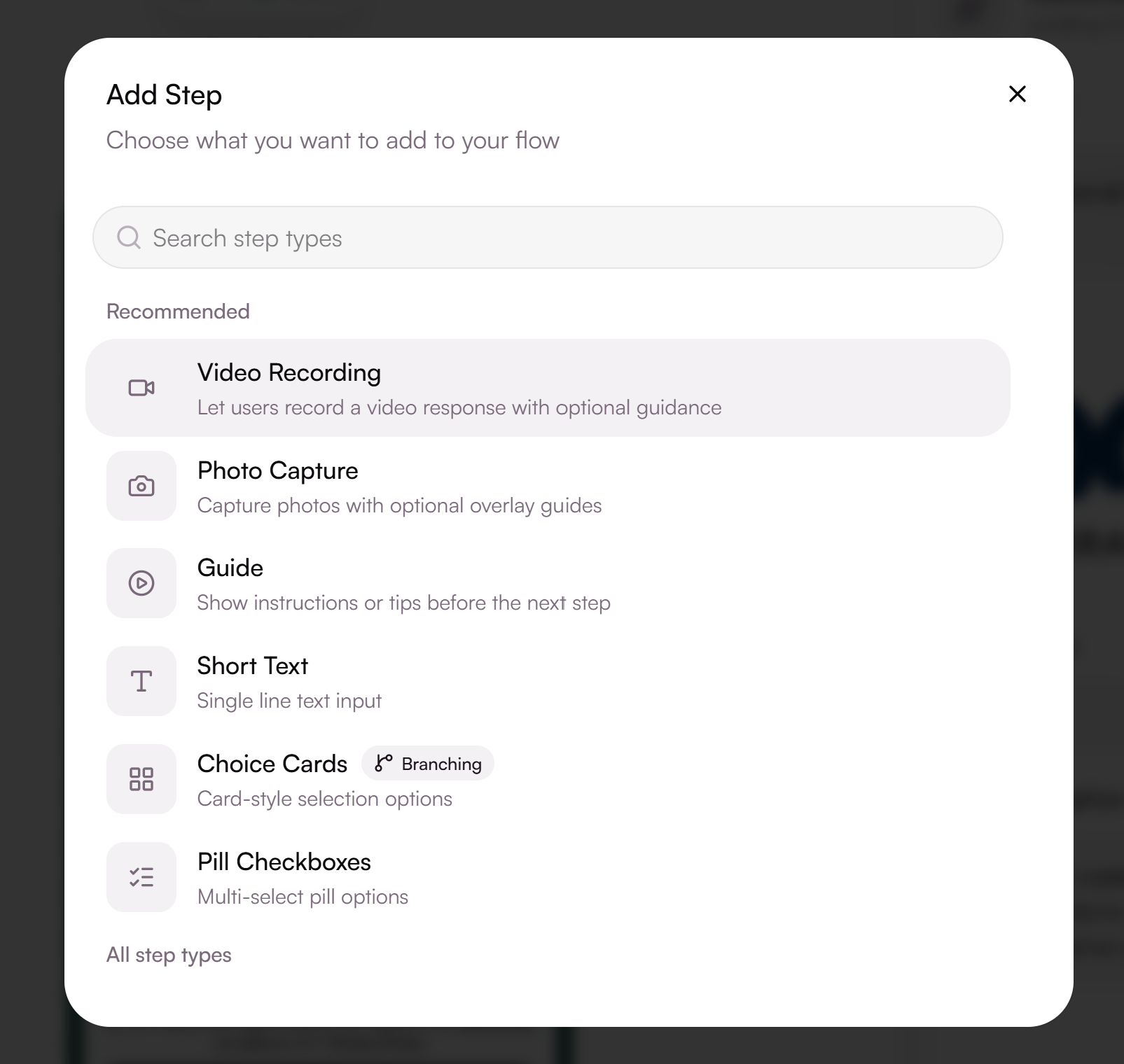
- Select what type of step or screen you want to add.
- Recommended types are shown at the top - but you can use the search box or scroll down to view all available types.
- Chose a step type that best fits the information you are trying to get from the customer.
- For branching flows - you'll need to select one of the types with the "branching" indicator next to it.
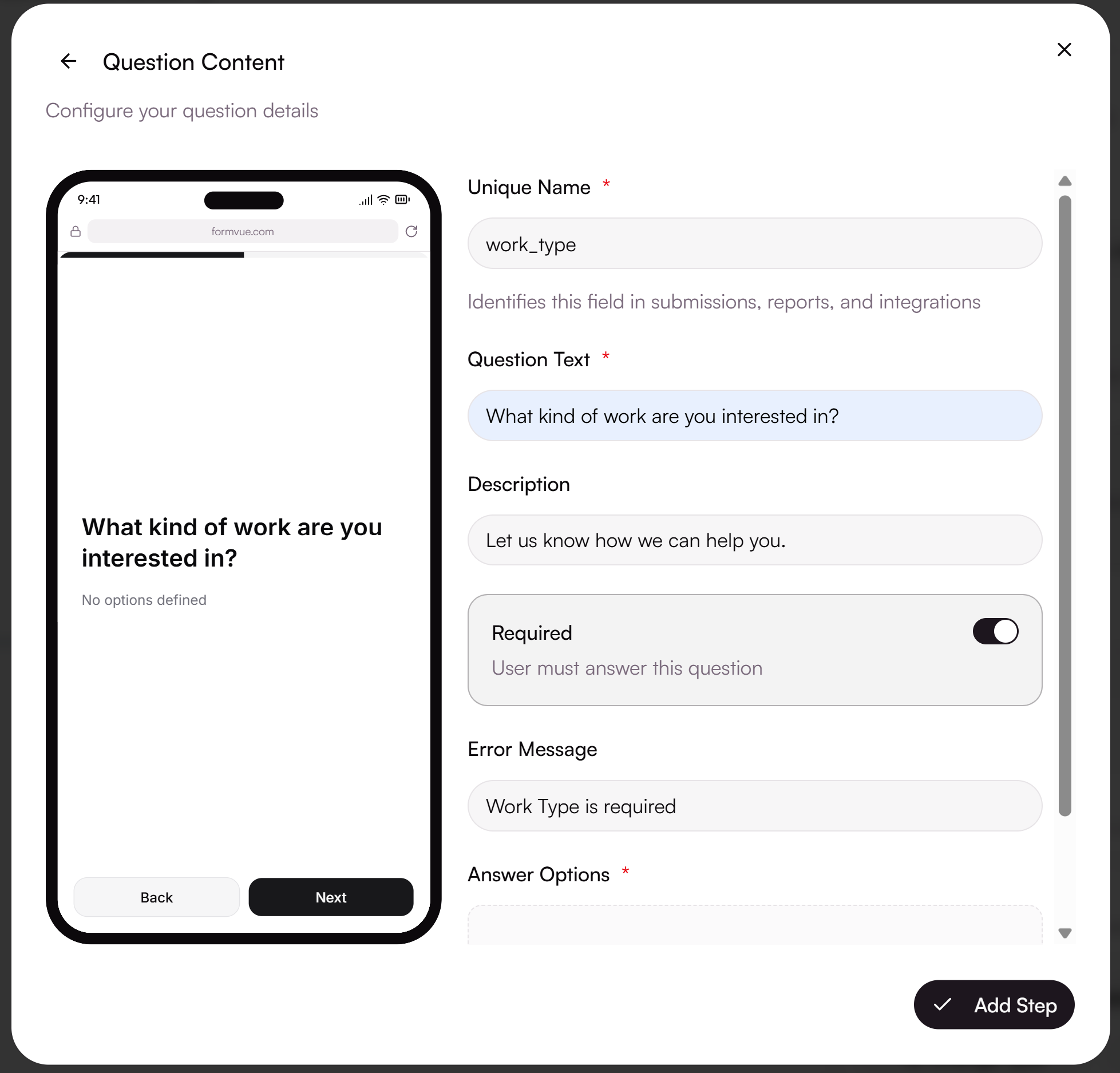
- Once you have selected a step type, a window appears where you can add the details for that step. The example below is for the Choice Card step type - but most steps have similar properties:
- Unique Name: a unique identifier for this step. This is not shown to the end user
- Question Text: the question you want to ask the user
- Description: Optional helper text if you want to provide examples of instructions on the answer or input you want from the user
- Required: enable this if you don't want the user to be able to skip this step
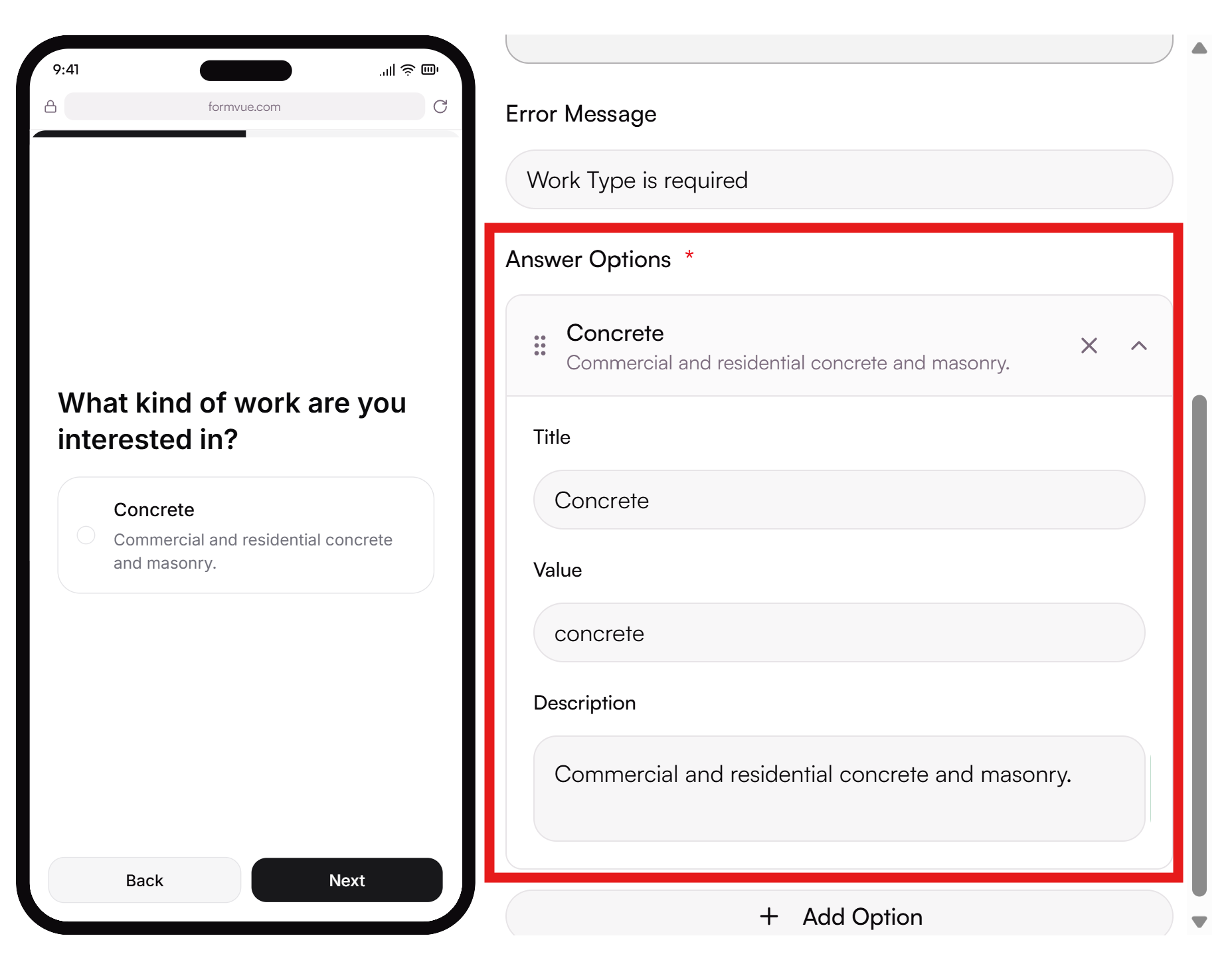
- Answer Options: the available answers for the user to chose from
- Click the "Add Options" button to add answer choices
- Title: The title that appears for that answer choice
- Value: an identifier for this answer used for integrations. This field is not shown to users and can be ignored unless instructed otherwise by FormVue support.
- Description: A description of the answer
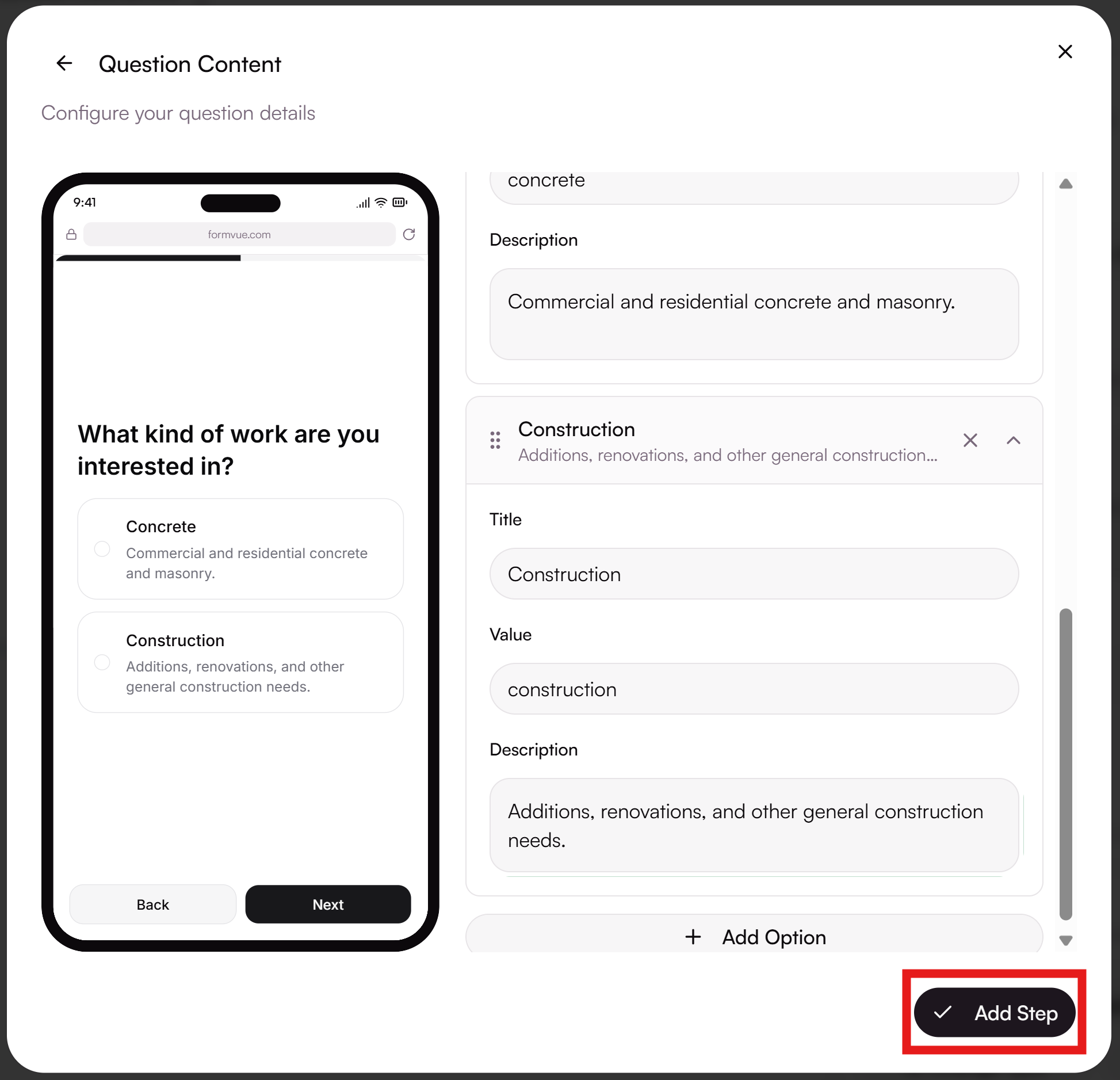
- When you have completed configuring your step, click the "Add Step" button in the lower right corner of the window to add your step to the workflow.
Step Types
Below are a list of the available step types:
Step Type | Description | |
|---|---|---|
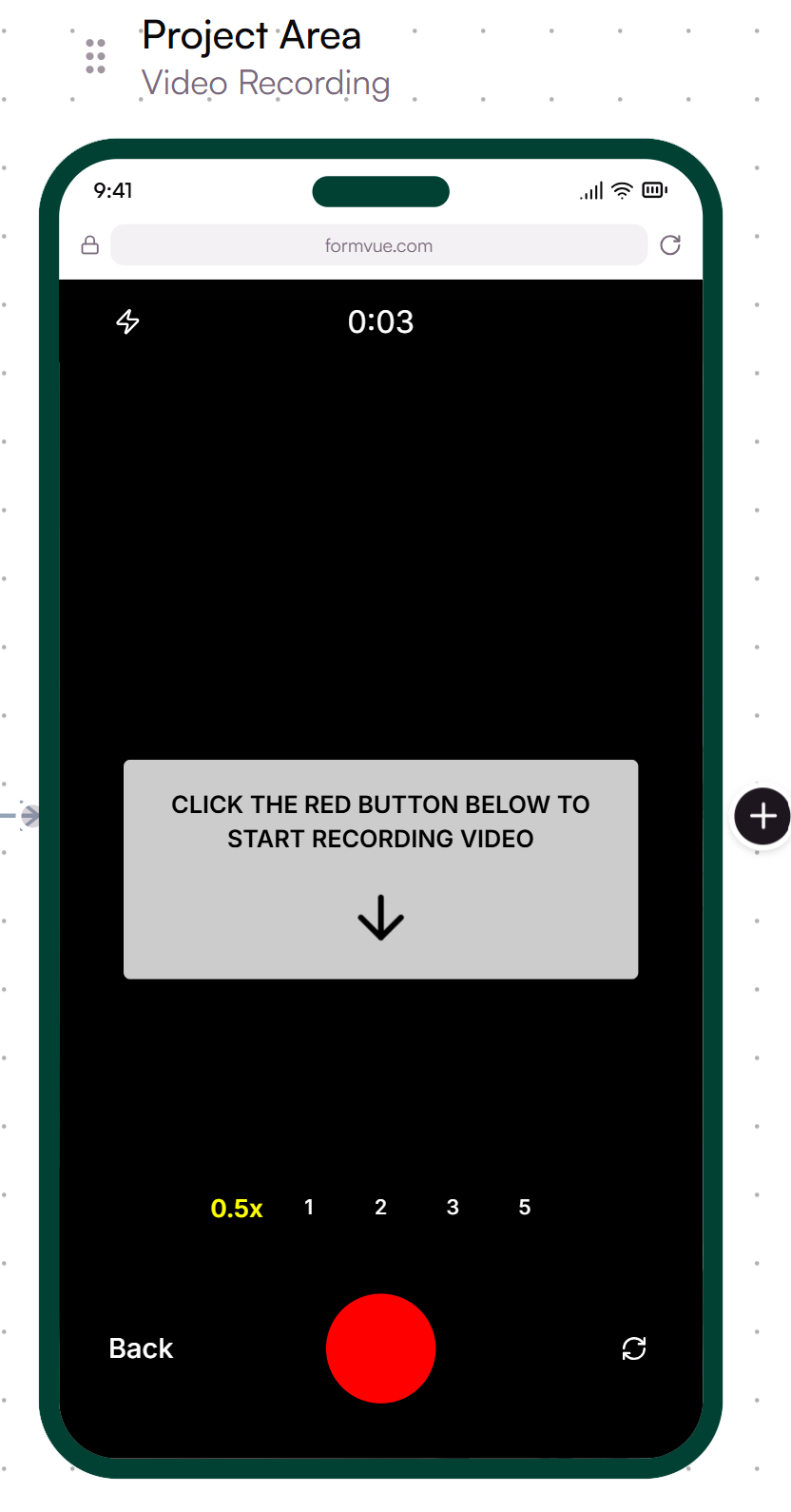
Video Recording | Let users record a video response with optional guidance (required for all forms) | |
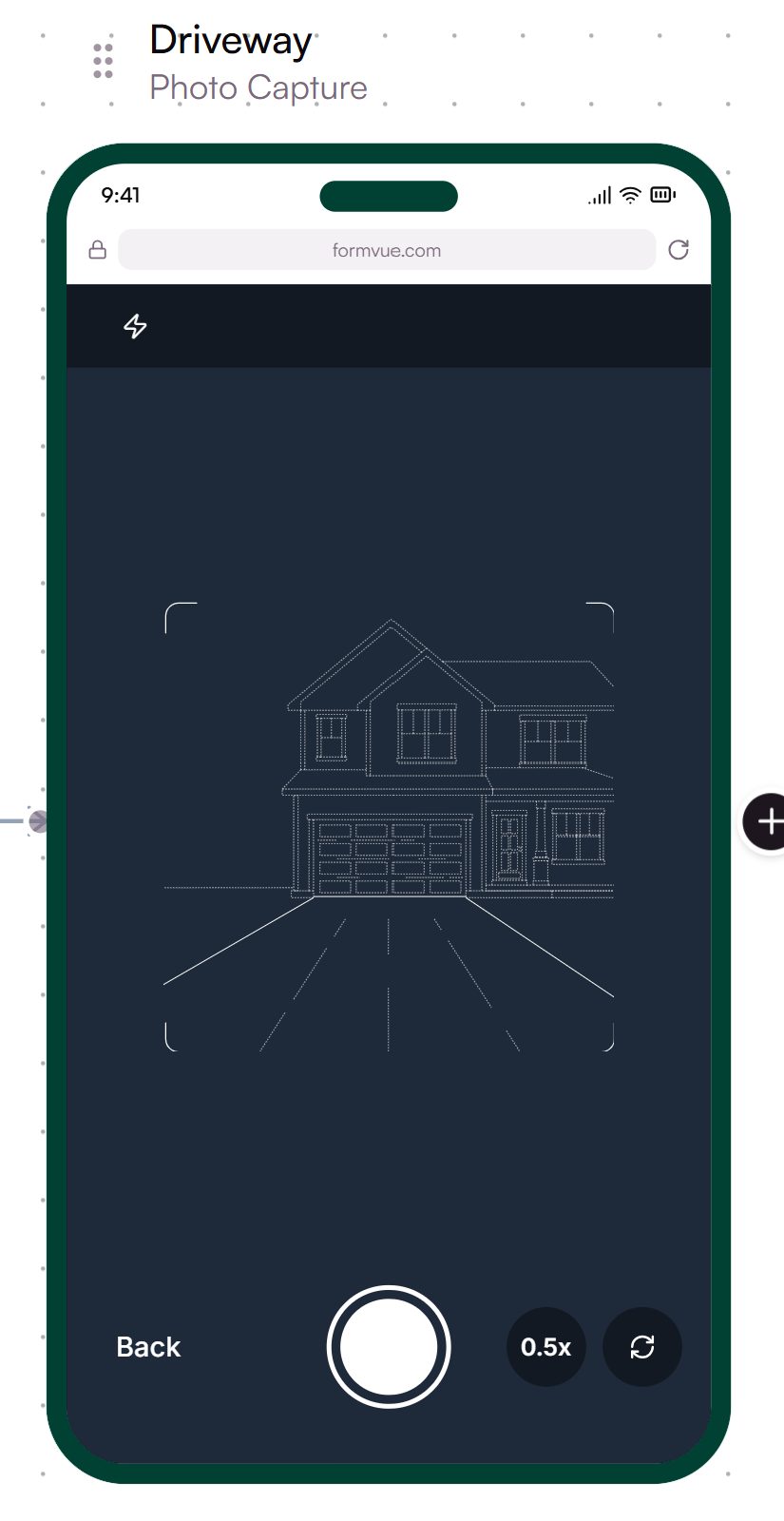
Photo Capture | Capture photos with optional overlay guides | |
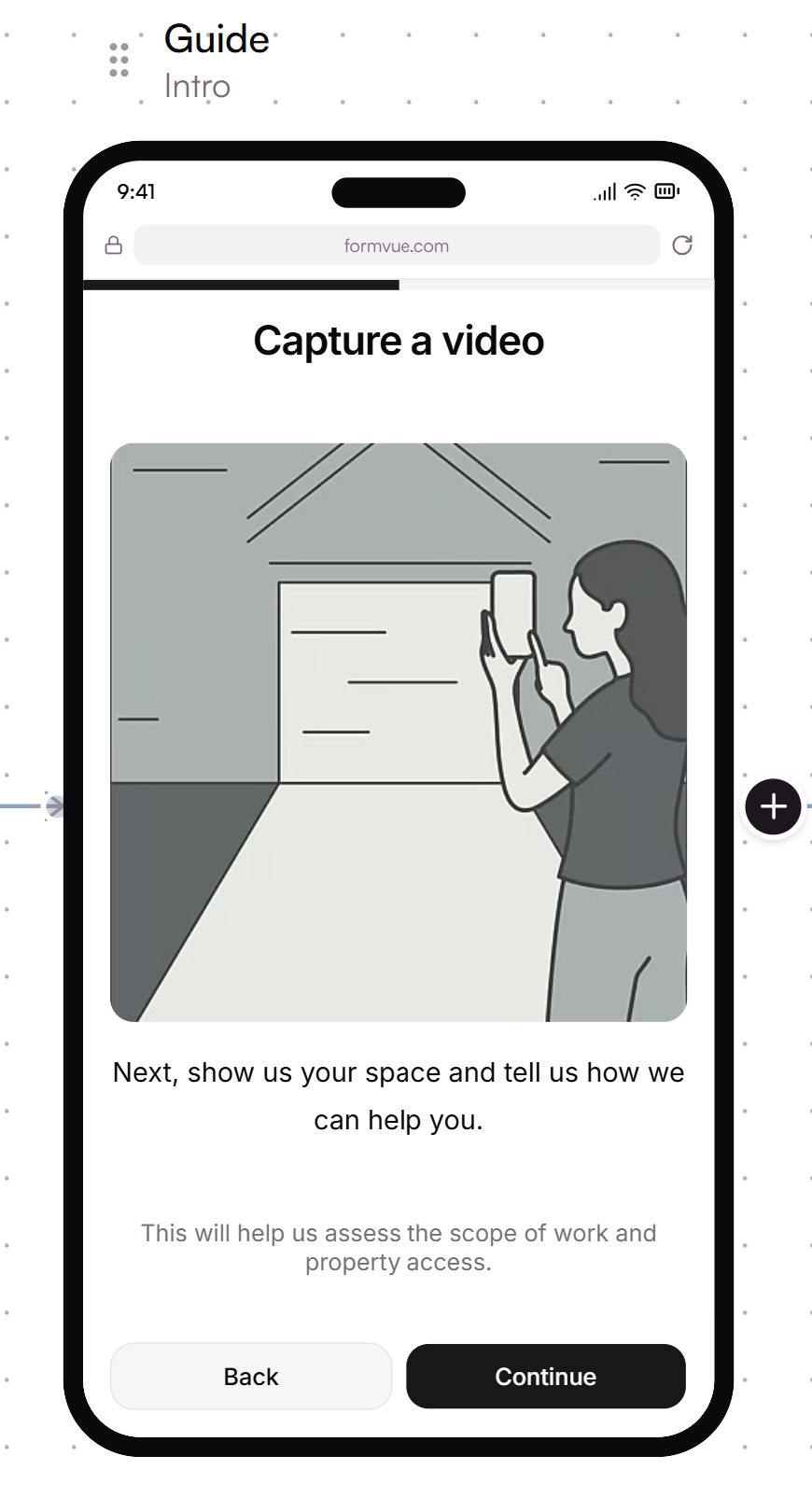
Guide | Show instructions or tops before the next step | |
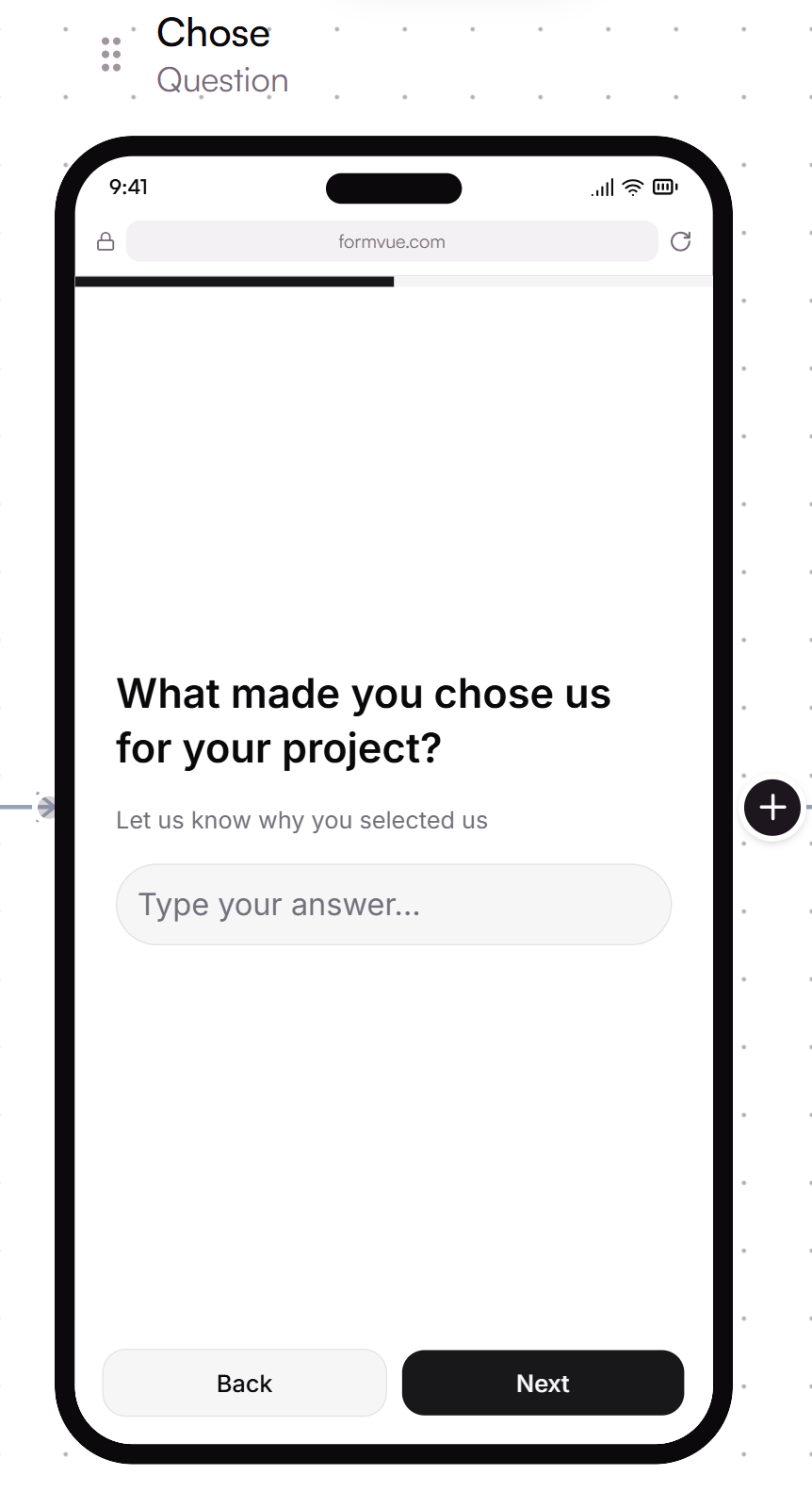
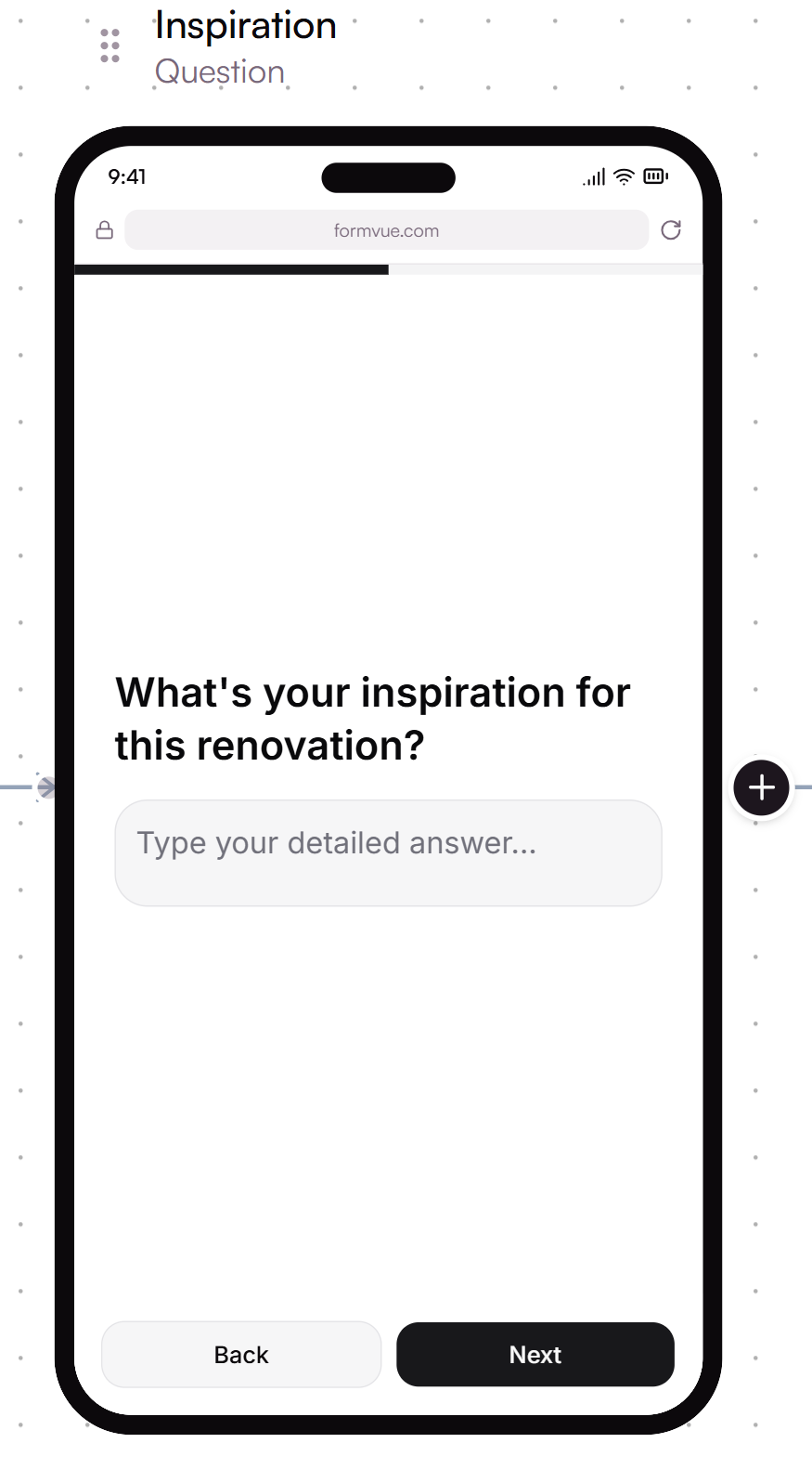
Short Text | A question step with a single-line text input | |
Long Text | A question step with multi-line text input | |
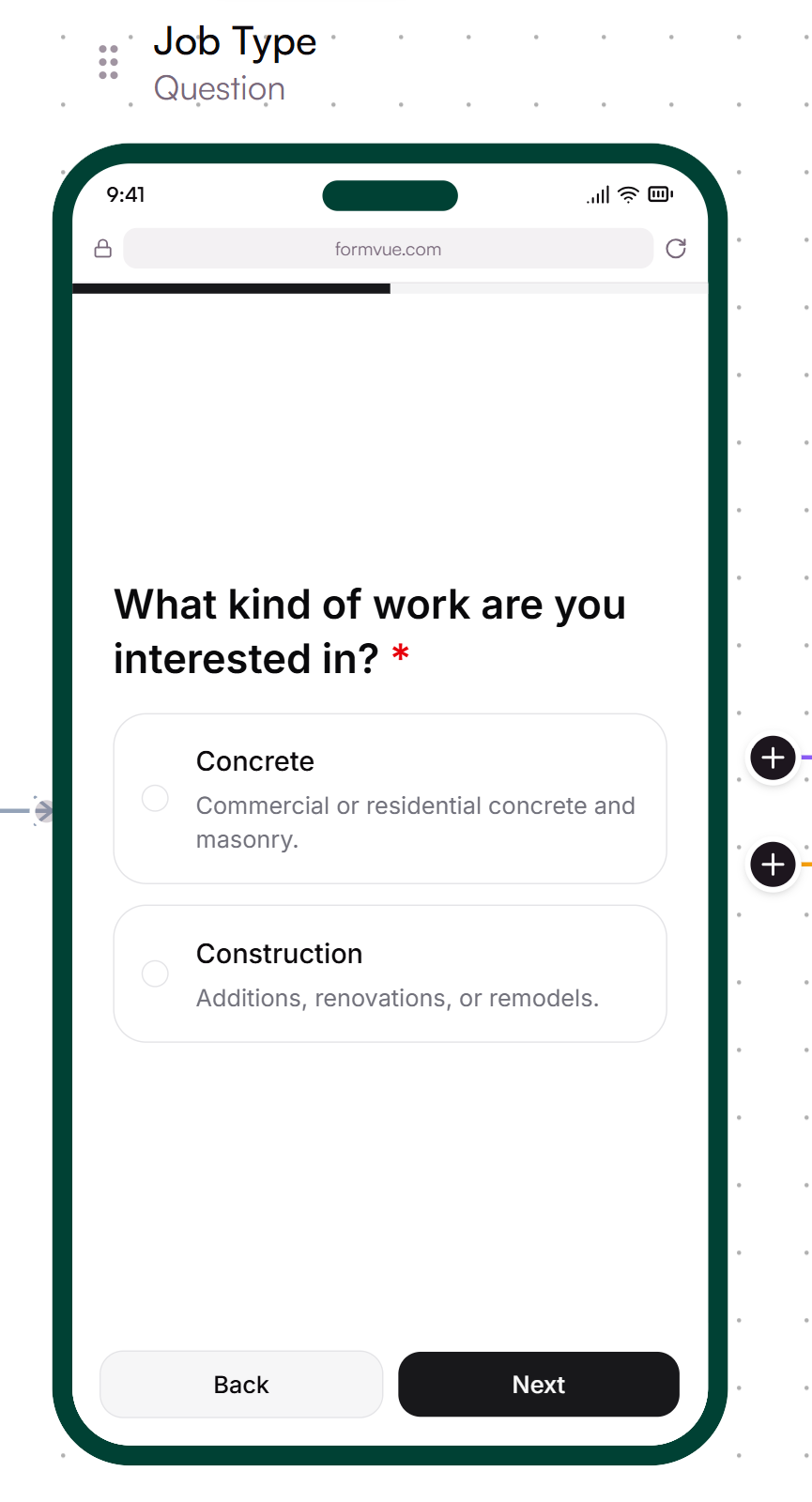
Choice Cards | A question step with card-style selection options | |
Pill Checkboxes | A question step with pill checkboxes - ideal for questions with multiple answers/inputs | |
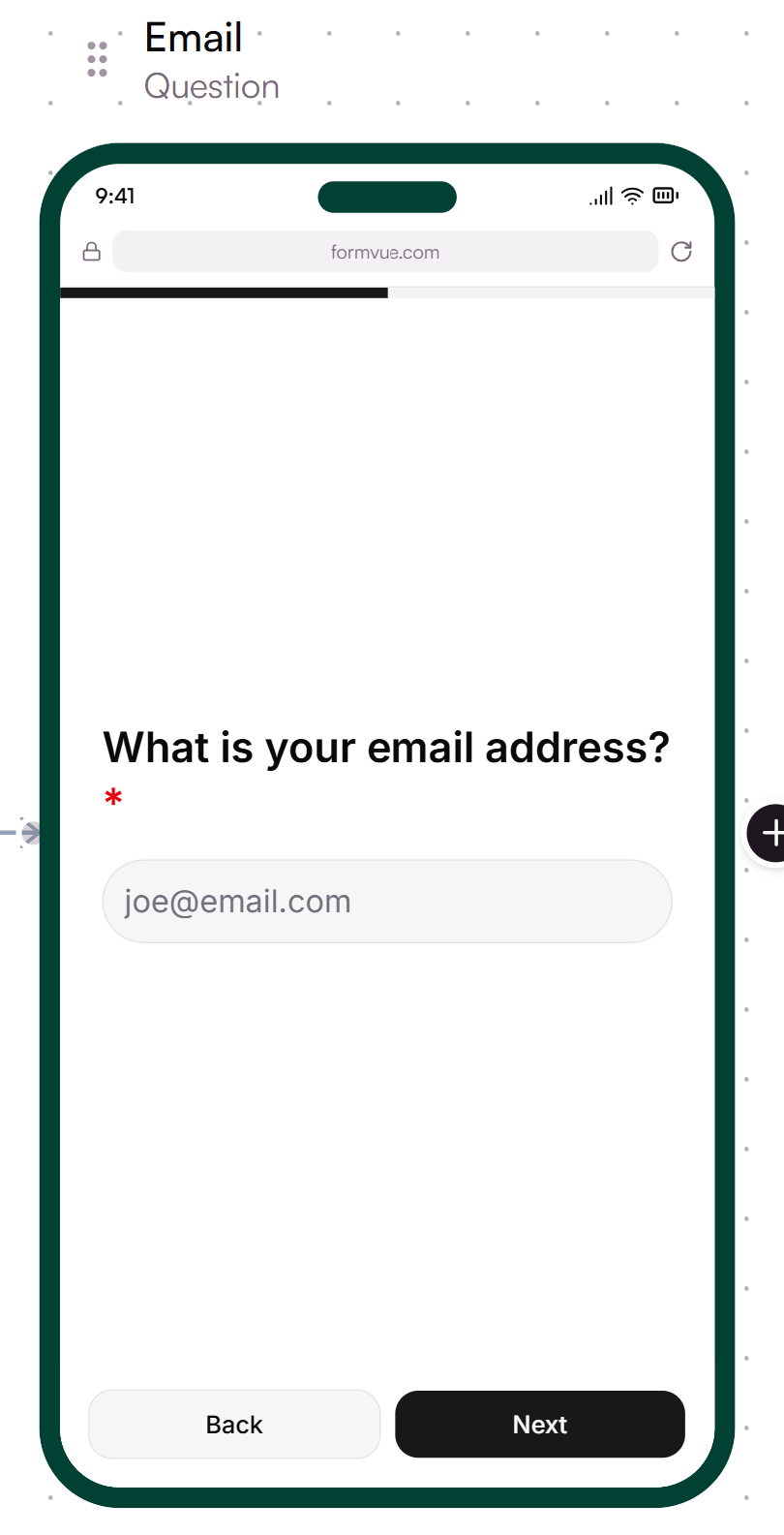
A question step with an input field for an email address that uses validation to ensure correct input format | ||
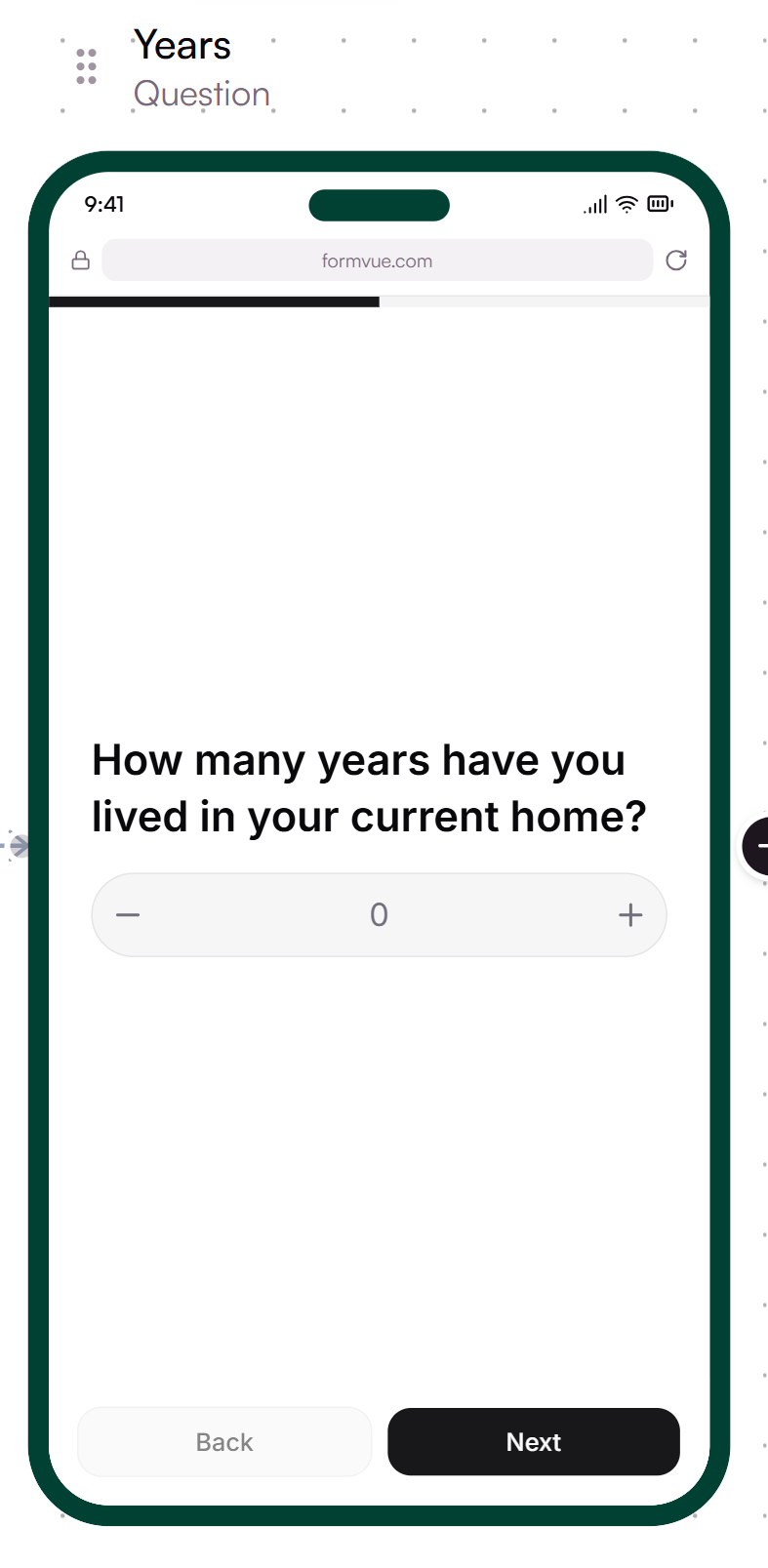
Number | A question step with numeric input | |
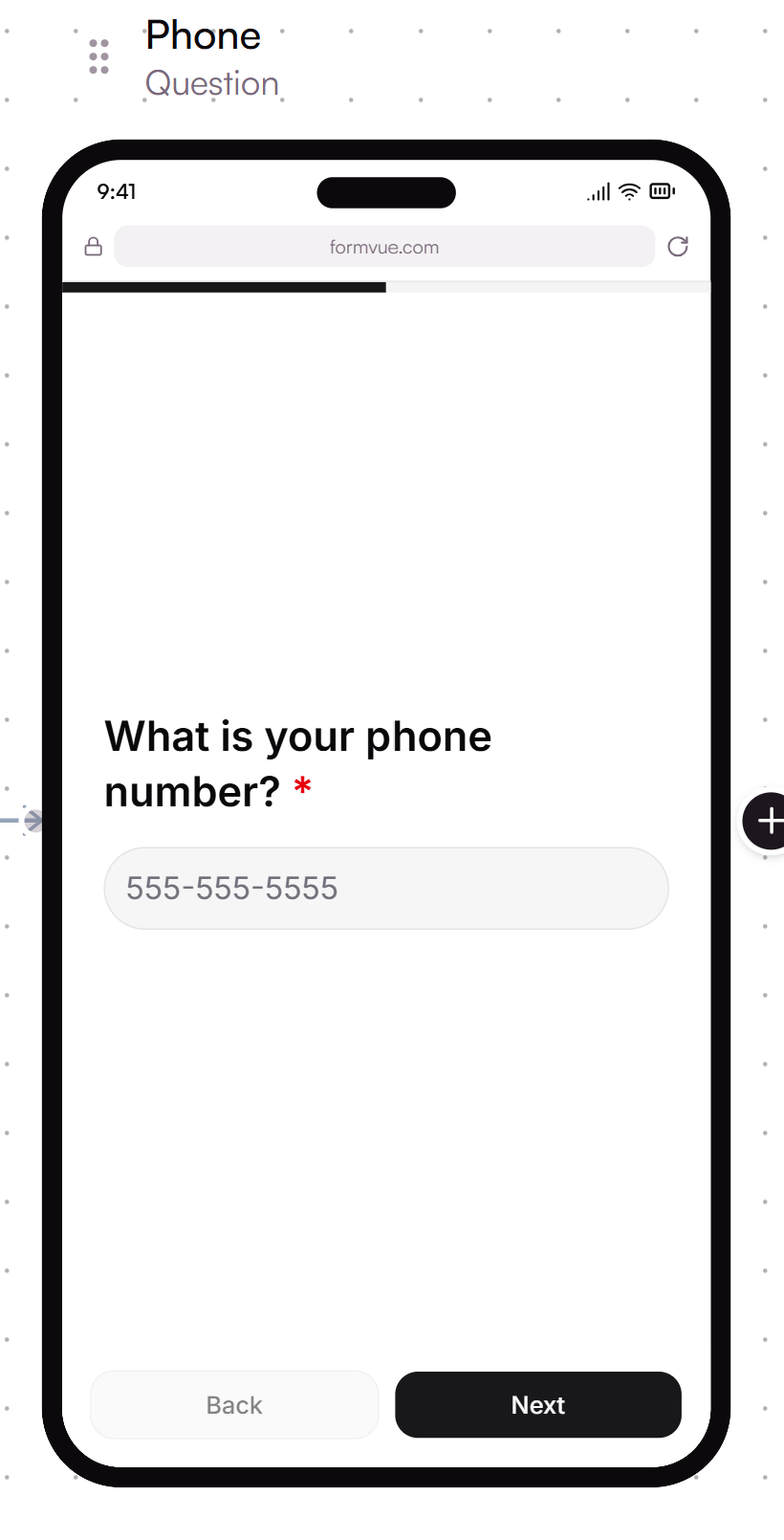
Phone | A question step with an input field for a phone number that uses validation to ensure correct input format | |
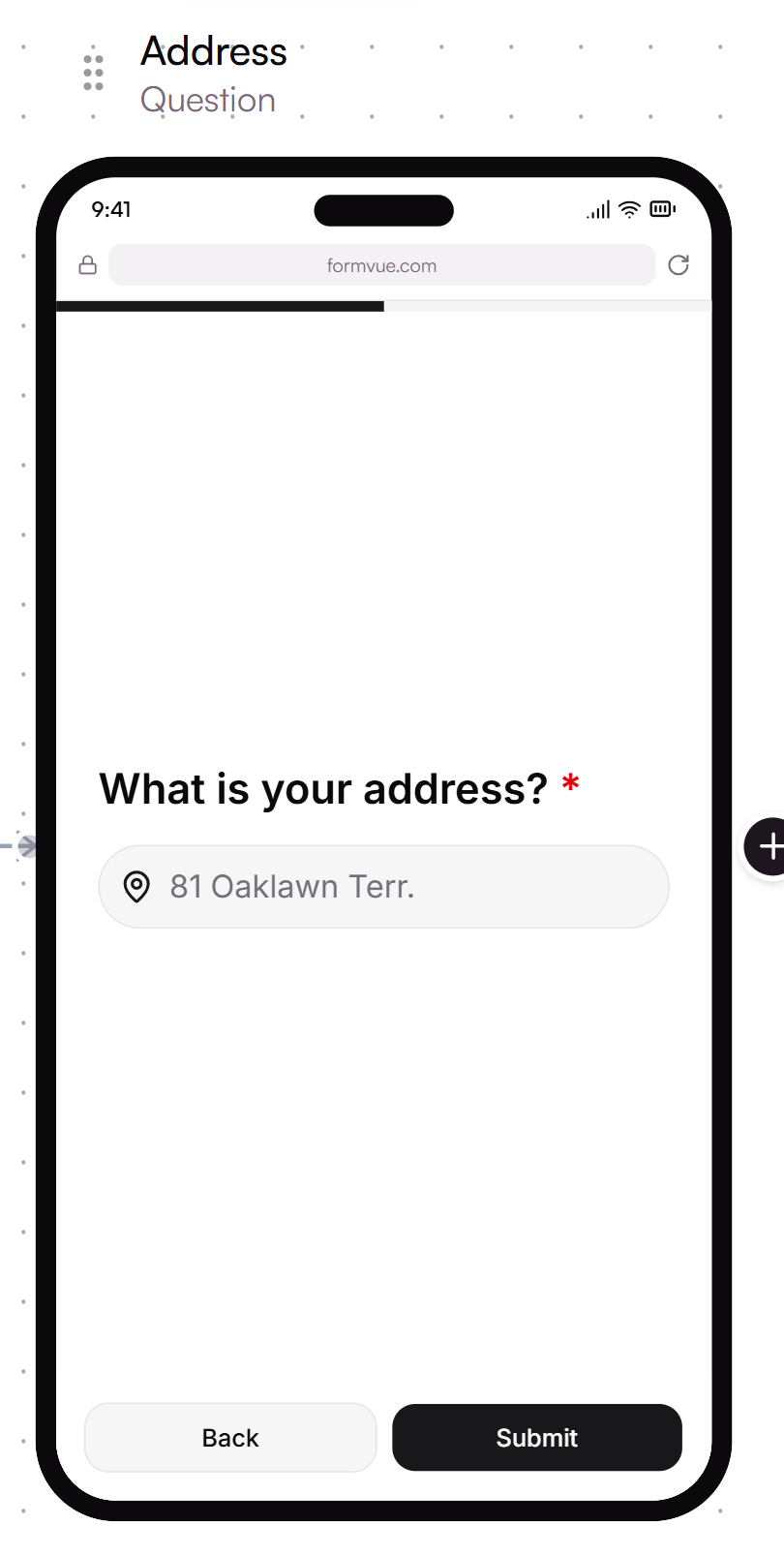
Address | A question step with an input field for an address that uses validation to ensure correct input format | |
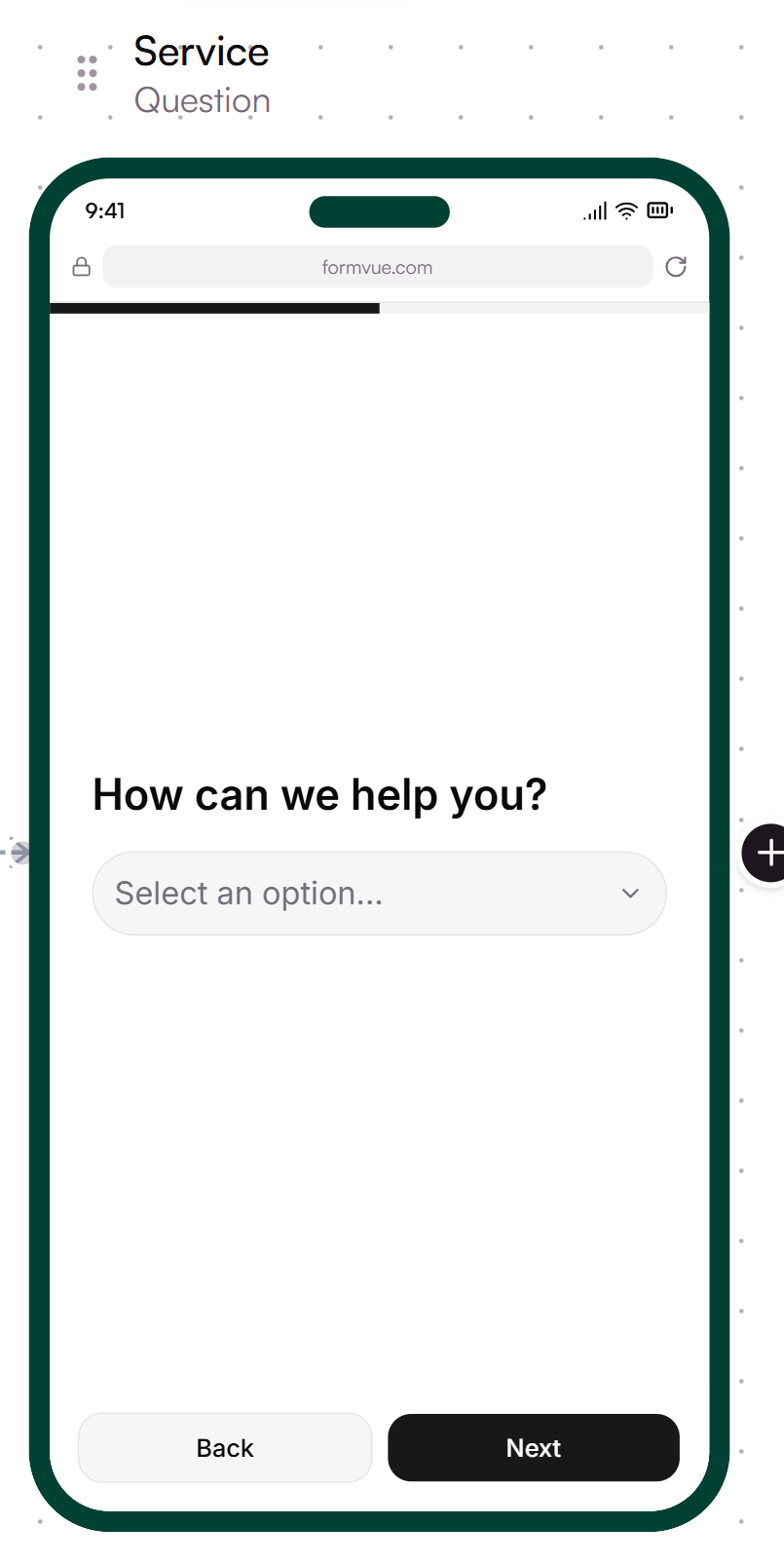
Dropdown | A question step that uses a drop-down box with a list of options | |
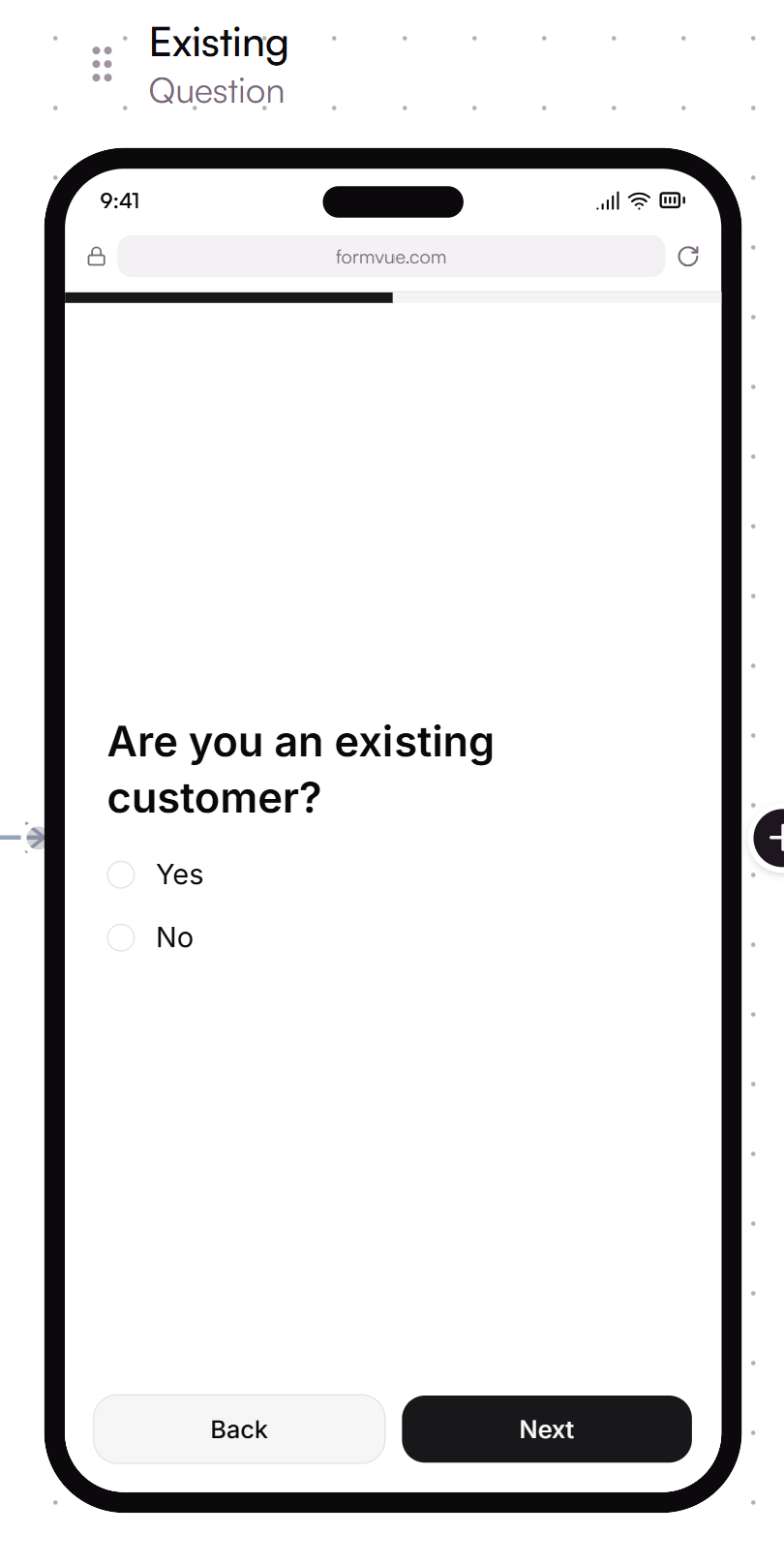
Multiple Choice | A question step with radio-button style input options | |
Check Boxes | A question step with checkbox input options - ideal for questions with multiple answers/inputs | |
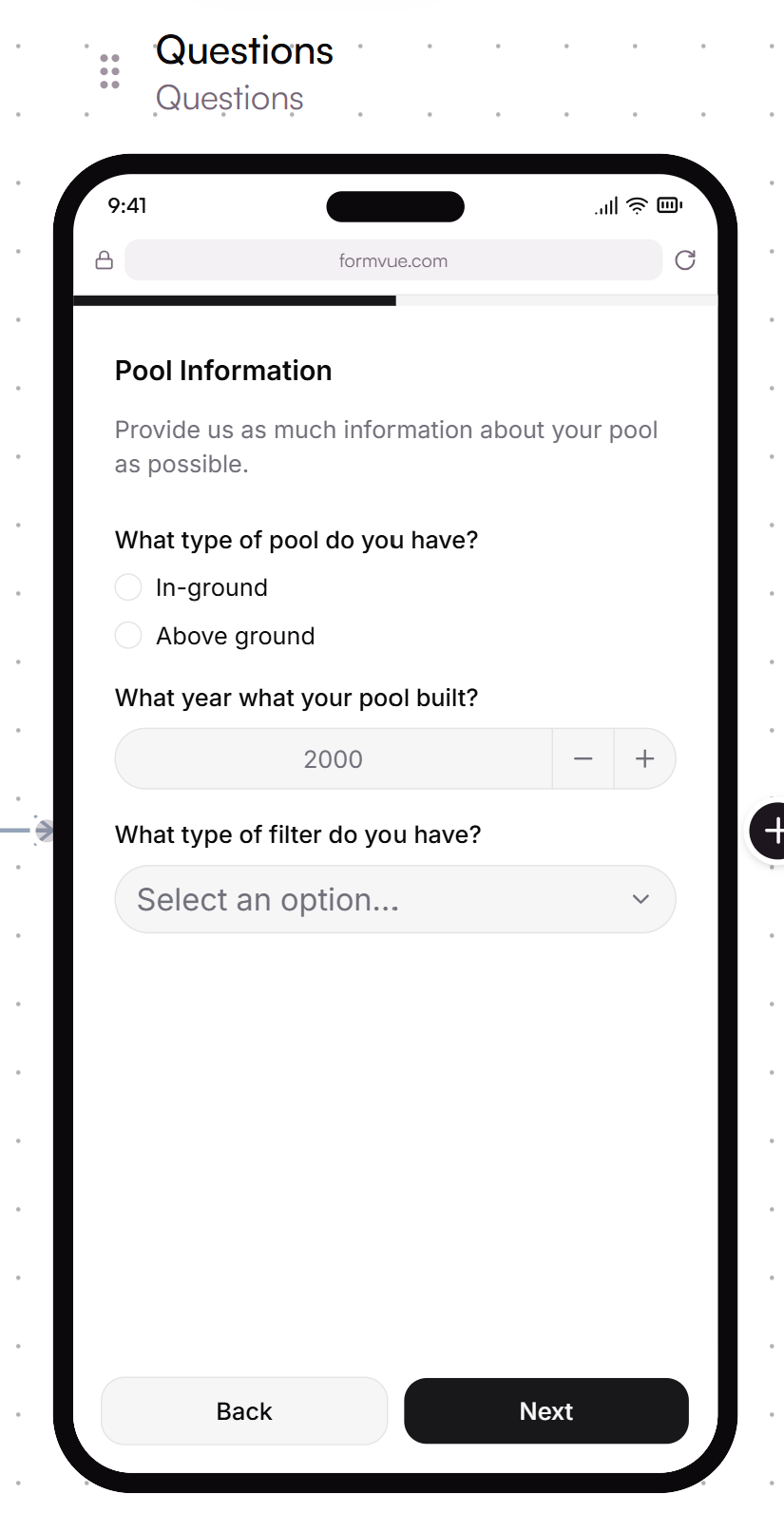
Multiple Questions | A question step that allows multiple questions with different input types on the same step or screen - ideal for groups of related questions | |
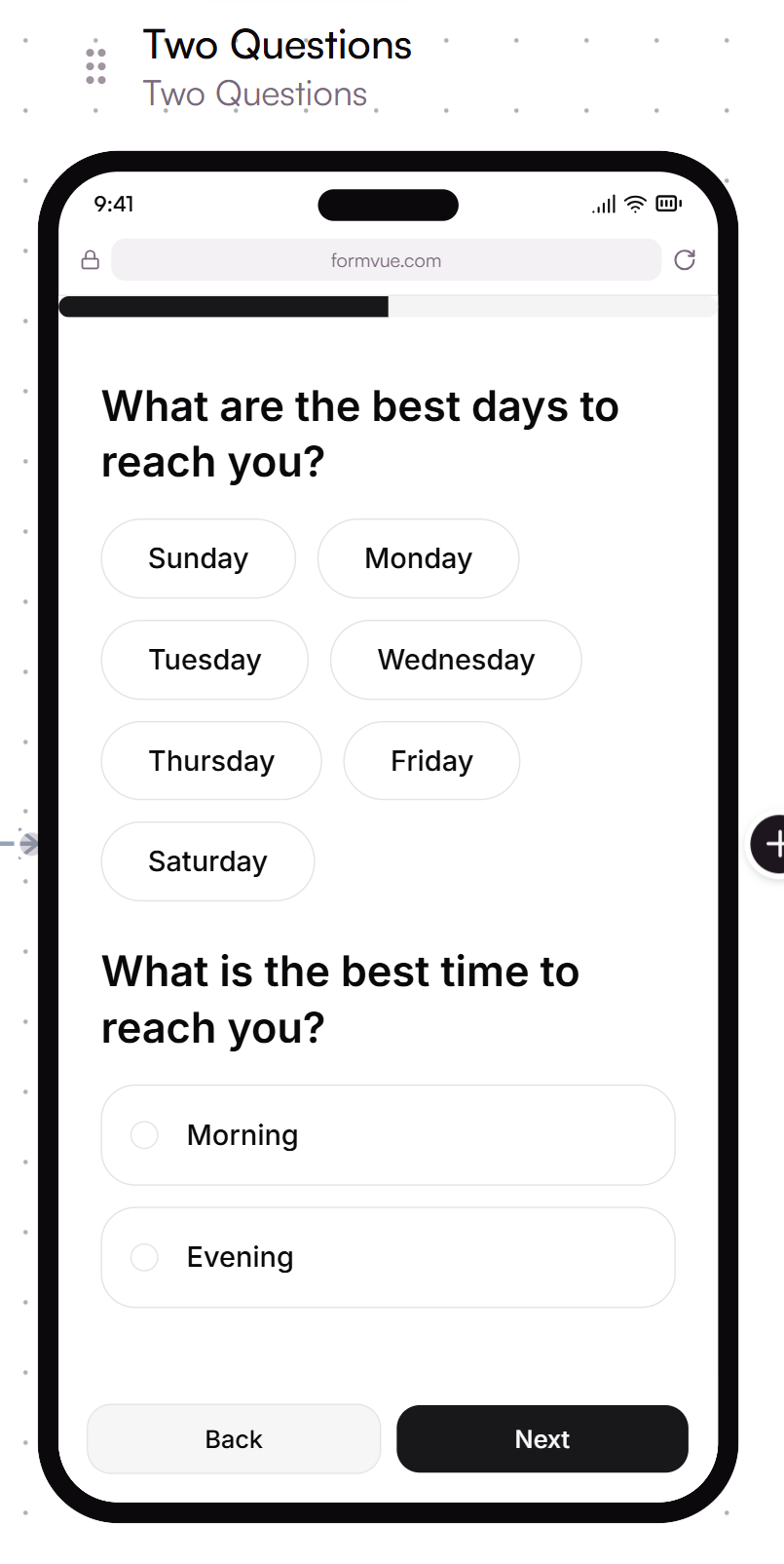
Two Questions | A question step that shows two questions centered in a single step |